VDX: Old Days UI Addon / Texture Pack
- 27-11-2025, 07:39
- 9 420
Mods 1.21 / Mods 1.20 / Mods 1.19 / Mods 1.18 / Textures

VDX: Old Days UI - Mod will change the appearance of the user interface and return the old textures. If you liked the old UI look more, then this add-on will help you get it. Open your inventory and you might feel like you’ve picked up an old phone you haven’t touched in years. VDX: Old Days UI brings the look of early Minecraft Pocket Edition menus back to Bedrock, right down to the screens you use between adventures.
This resource pack takes inspiration from the Pocket and desktop interfaces of Minecraft’s 2015 alpha era. The start screen, settings, chat, pause menu, and inventory are among the areas given an older look. Some screens are recreated more closely than others, so don’t expect every button to match an old version perfectly. What you do get is a familiar style that follows you from the main menu into your world. Open a chest, check your inventory, or pause to adjust a setting, and the interface can take you back to those first hours spent figuring out where everything was.


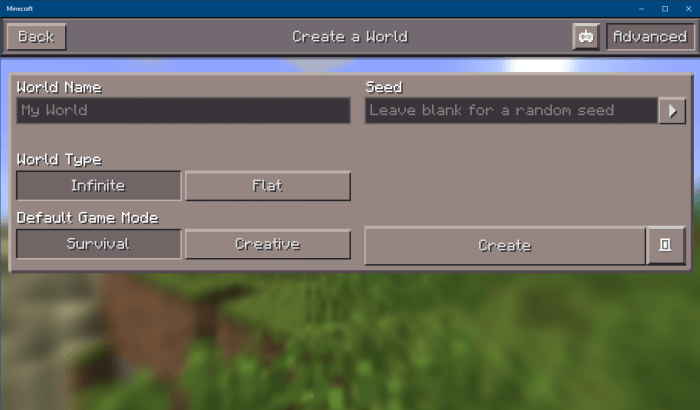
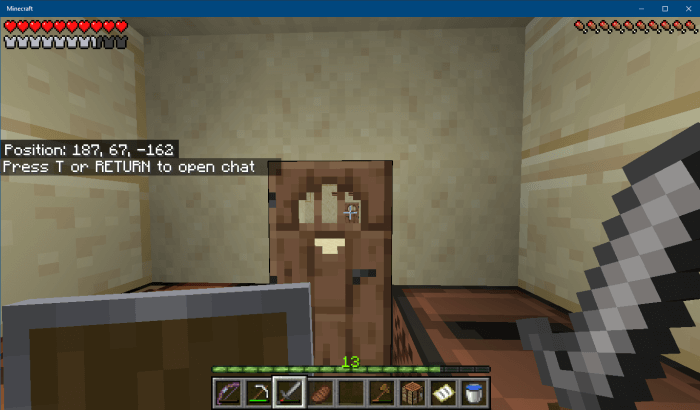
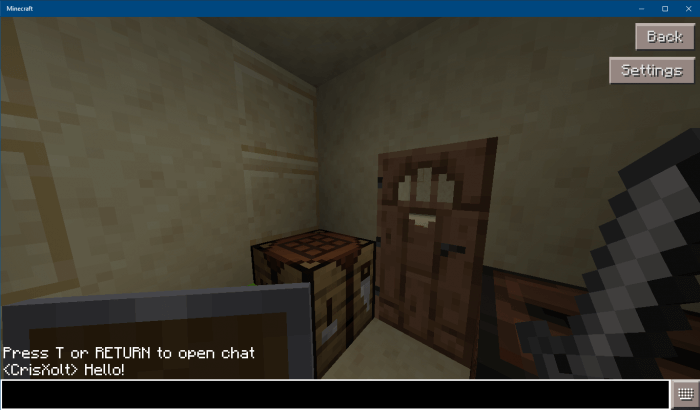
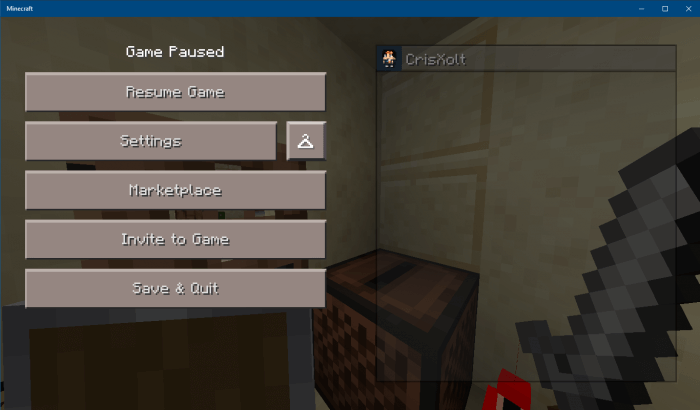
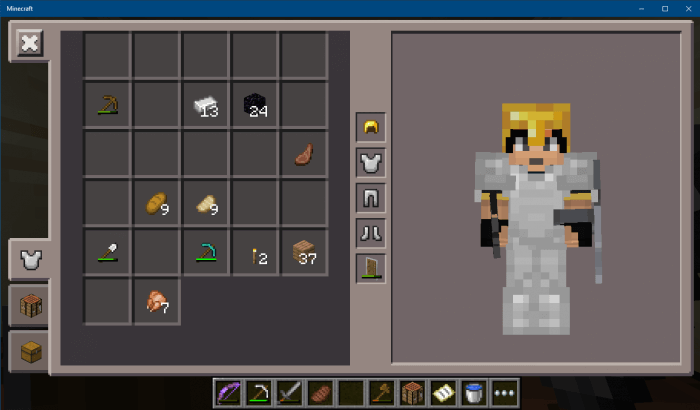

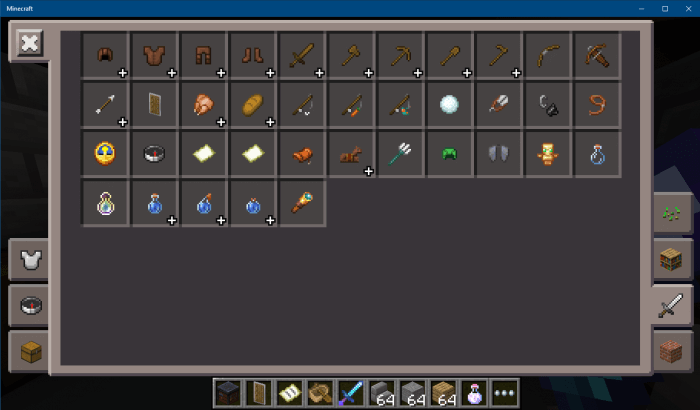


The inventory is likely to be one of the first changes you notice. It’s a screen you open constantly, whether you’re sorting a mining haul or looking for the stack of cobblestone you swear you just picked up. With the older design in place, even organizing your supplies feels a little different. The pack includes designs for Pocket and desktop inventory screens, so it’s worth exploring the available options and seeing how they feel on your device. Give yourself a little time to get used to the layout before jumping into a fight with a full inventory.
The nostalgic look extends to the HUD and other screens you see while playing. You can explore a modern Bedrock world, open the chat to talk with friends, and still enjoy an interface inspired by an earlier era. It’s an appealing combination if you’ve spent years with Minecraft and miss the way Pocket Edition looked when you first started playing. For newer players, it’s also a chance to see a different style of interface without leaving their current worlds behind. Not every screen can be changed, though: the create-world screen uses a newer interface system that resource packs can’t modify in the same way.
Before installing, check that the pack version matches your Minecraft version. Other resource packs that change the interface may conflict with it, and some modified screens may not work fully with a controller. Open the downloaded `.mcpack` file to import it, then activate the resource pack in your settings. Once it’s enabled, take a moment to look through the menus before loading a world. You might find yourself lingering on an old-fashioned inventory screen longer than you expected, remembering the days when finding a village or crafting your first diamond pickaxe felt like the biggest achievement in the game.
Installation:
- Download Texture;
- Open the downloaded .mcpack to install;
- Select texture in settings;
- Done.
Comments (2)