Diamond UI – Addon / Texture Pack
- 6-03-2026, 06:38
- 491
Mods 1.26 / Mods 1.21 / Textures
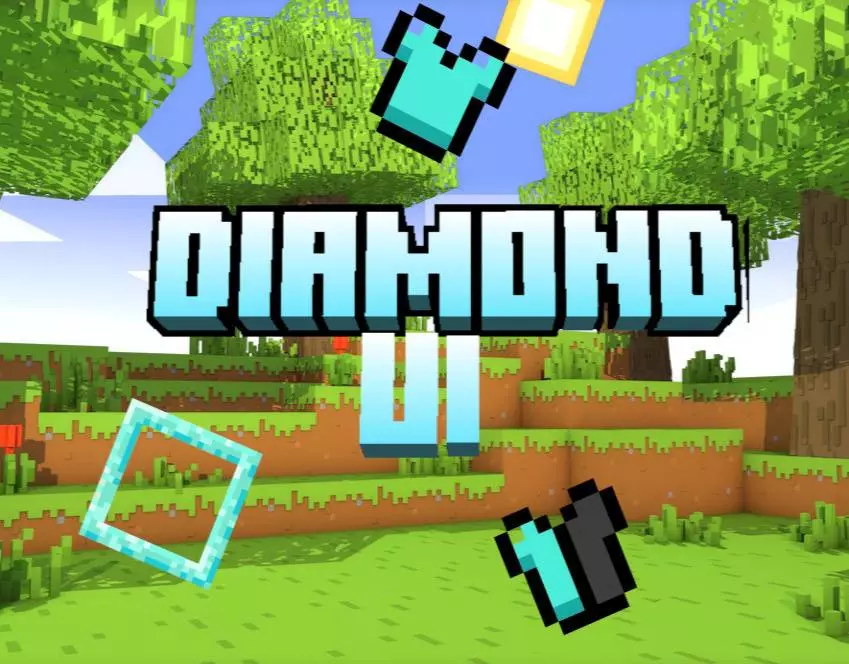
Diamond UI - Do you want an elegant and updated diamond-style user interface? Then download this add-on to your smartphone or computer. Diamonds usually mean a lucky mining trip, but Diamond UI puts that familiar shine on your screen from the moment you start playing. This Minecraft Bedrock texture pack gives the armor bar and hotbar selector a diamond-inspired makeover, adding a splash of color to the interface you use every day.
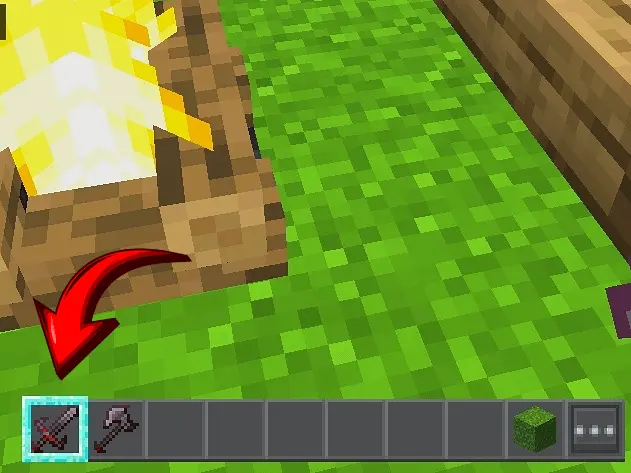
The hotbar is where you’ll probably notice the change first. Your selected slot gets a diamond-themed highlight, making it stand out as you switch between your pickaxe, sword, food, and building blocks. Picture yourself halfway through a cave run: a skeleton spots you, you swap from your pickaxe to your sword, and the highlighted slot shows what you’ve selected. It’s a small visual change, but the hotbar is always close at hand, whether you’re fighting mobs or placing the last few blocks on a roof. The pack keeps the idea straightforward, so you don’t have to learn a new layout before getting back to your world.
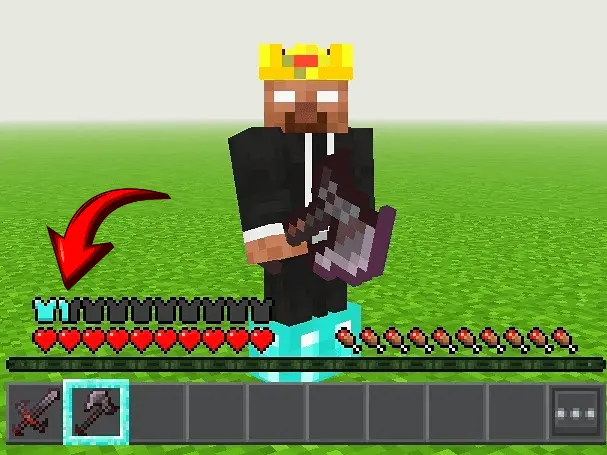
Diamond UI also replaces the usual armor bar icons with diamond-styled designs. Full and half armor indicators have their own textures, giving the display a matching look while still showing your armor status. Take a glance at the bar when you put on your gear, then compare it with what you’re used to seeing. It’s the kind of detail you might appreciate during a long survival session, when you’re checking your equipment before heading underground or getting ready to face a raid. If you like coordinating your character’s appearance, the blue diamond theme can also pair nicely with your favorite skin or equipment. You don’t need to hunt for diamonds to enjoy the interface, though; the resource pack changes the display regardless of where you are in your adventure.
The appeal here is in the details you see while playing. Diamond UI can be a fun pick for survival, building, or PvP if you want a more colorful HUD without replacing the scenery around your base. Put your favorite tools in the hotbar, try switching between them, and see whether the new selector feels good during a normal session. To install the pack, open the downloaded file in Minecraft, head to Settings, and activate it under Global Resources. Give the resources a moment to load, then enter a world and check the armor icons and selected slot. If another pack changes the same interface textures, their order in your active pack list may affect what you see. That’s easy to test: adjust the order, reload the resources, and take another look. Once you’re happy with the setup, the diamond theme will be there while you mine, build, and fight your way through your next adventure.
Installation:
- Download Texture;
- Open the downloaded .mcpack to install;
- Select texture in settings;
- Done.
Comments (0)