Alleis Skin Pack
- 9-06-2026, 02:12
- 2 266
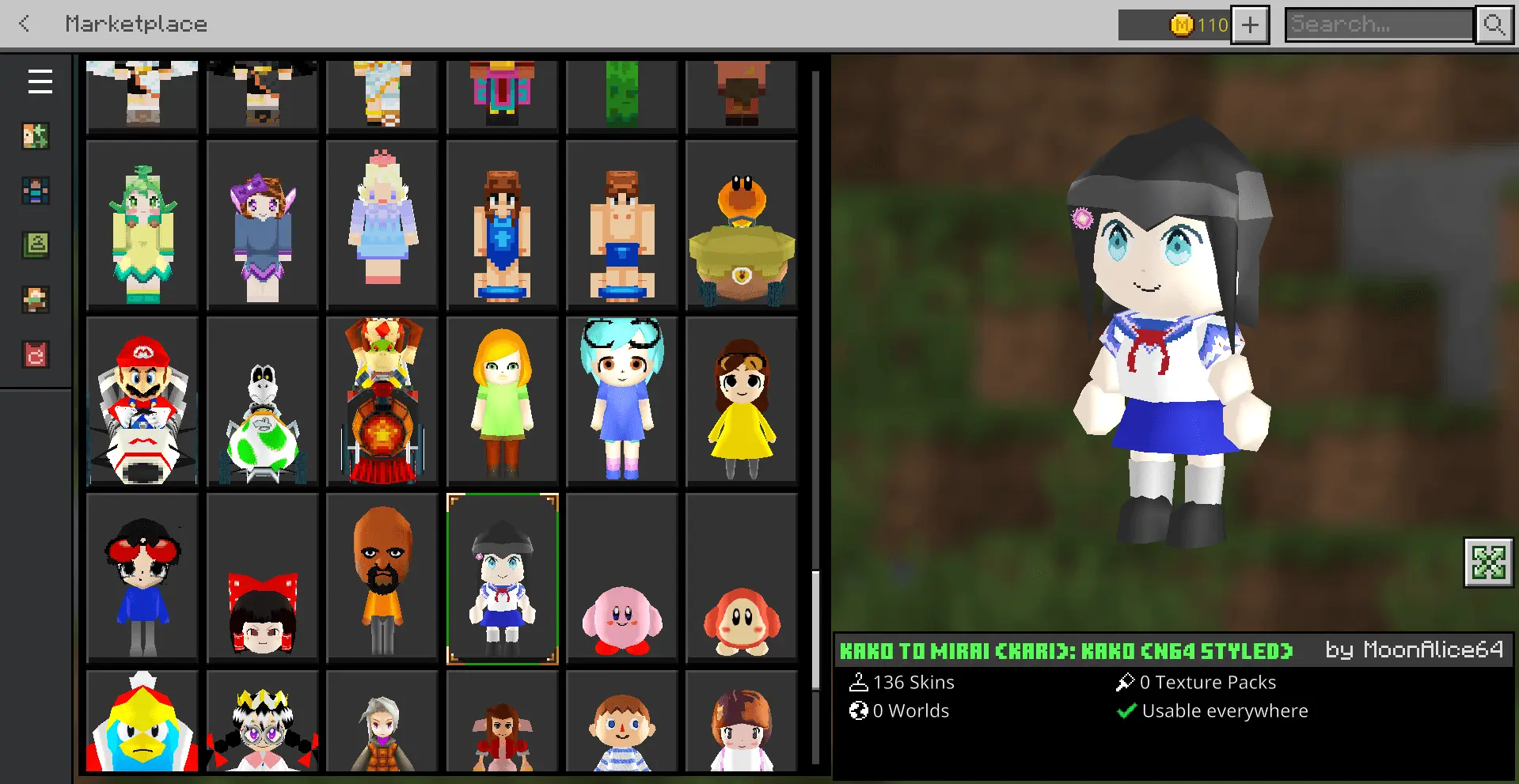
Alleis Skin Pack is all about sheer variety. Araise packed it with 130 skins you “won’t find anywhere else,” and the big idea is that it’s organized into two categories: Hive Cosmetics and non-Hive Cosmetics. In the pack’s labeling, orange text means Hive Cosmetics, while gold text points to Normal 4D Skin, so you can quickly tell what you’re grabbing without scrolling around confused.
If you like switching vibes depending on what you’re doing, this pack is perfect for that. One night you can roll up as something like NPC Chester or Moria-Chan, then swap to a totally different look when you’re heading into a build session or hopping into multiplayer. The Hive Cosmetics side includes names like Tearmoon Empire - Mia and Sakura-chan, and the “and more” part is honestly the point here—this pack is meant to feel endless, like you always have another skin to try when you get bored of your current one.

The Normal 4D Skins section is where you’ll see examples like Mint, Ichigo-chan, Pokemon XY - Serena, and even Super Smash Bros Ultimate - Pig Outfit and Mask. In actual gameplay, that means you can match your skin to whatever mood your world has that day: chill survival grinding, showing off a base to friends, roleplay moments, or just going for a funny look while you wander around and cause chaos. A good move is to keep a couple “main character” skins you always go back to, then rotate in random picks from Alleis Skin Pack when you’re doing screenshots or playing in a group where everyone wants a different style.
Since Alleis Skin Pack is so big, it’s also great for long-term worlds where you don’t want your character to look the same for months. Swap skins when you hit milestones—new base area, big mining trip, new project—just to keep things feeling fresh. If you’re posting clips, the gold-text Normal 4D Skin options can help your character pop on screen, and the Hive Cosmetics grouping makes it easy to pick a consistent theme when you want your look to match your friends in Minecraft Bedrock.
How to Install Skins in Minecraft Bedrock
- Download a .png skin (64×64 or 128×128).
- Open Minecraft Bedrock.
- Go to Profile (hanger icon) → Edit Character.
- Tap Owned → Import → Choose New Skin.
- Select your .png file.
- Pick a model: Classic (Steve) or Slim (Alex).
- Confirm to equip and play.
Comments (0)