Demon Creeper Skin
- 19-01-2026, 14:57
- 715
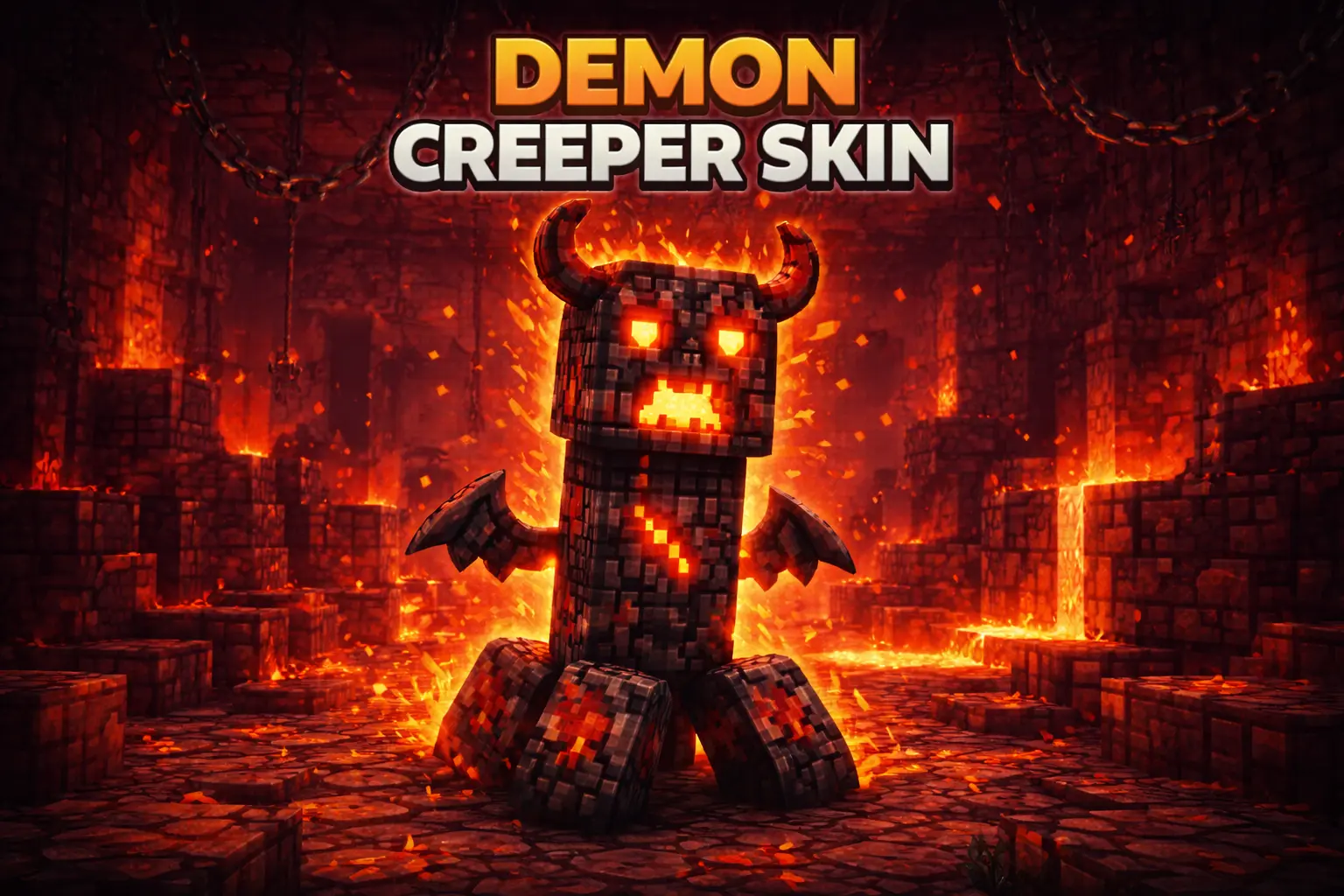
Demon Creeper Skin is a simple concept that hits hard: you’re basically showing up with creeper vibes, but with a darker twist that makes your character feel way more intimidating. If you like skins that read instantly in-game, this one’s easy to understand at a glance, and it fits right into survival without feeling like some random costume you’ll ditch after one session.
In regular Minecraft Bedrock gameplay, this skin shines the most during the parts of the game that already feel tense. Nighttime runs, sketchy caves, or those moments when you’re low on food and you’re trying not to attract attention—Demon Creeper Skin just matches the mood. It also looks great when you’re doing the classic “torch in hand, creeping through a tunnel” routine, because creeper-themed looks always feel like they belong in the dark. If your world has a lot of underground bases, mob farms, or spooky builds, Demon Creeper Skin fits naturally without you having to force a theme.

Multiplayer is where it gets extra fun, because creeper vibes automatically mess with people’s instincts. Even if everyone knows you’re a player, there’s still that split-second “wait—” when you step out of a shadow or walk up behind someone while they’re crafting. It’s a solid pick for hide-and-seek moments, chaotic server hangouts, or just walking around spawn and looking like trouble. If you’re doing screenshots, try standing in places with strong contrast—dark stone, deep caves, nighttime forests—so the silhouette pops and the whole look feels sharper.
I followed a trail of torches through a Minecraft cave for twenty minutes before realizing I was walking in circles. The embarrassing part is that I'd placed every single torch myself. I kept recognizing little patches of coal and telling myself the tunnels just looked similar. Then I passed a crafting table with a piece of rotten flesh sitting beside it. I'd left that exact table there half an hour earlier. At that point, I stopped pretending I knew where I was going. I opened my coordinates, checked the direction of my original tunnel, and started marking intersections properly. When I finally reached the surface, it was raining, my pickaxe was nearly broken, and I'd collected almost nothing useful. My friend asked how the mining trip went. I said I'd conducted an extensive underground survey. He asked whether I'd found diamonds. I told him we'd discuss the results after dinner.
Our Minecraft group tried organizing a movie night inside the game, which sounds completely pointless until you realize how much fun people have pretending ordinary buildings serve different purposes. We constructed a small theater, arranged rows of seats, and decorated the front wall with paintings. Somebody brought cakes and cookies for snacks. Another player insisted we needed tickets, so he started handing out renamed pieces of paper at the entrance. There was no actual movie, obviously. We just sat around while one friend told a story about getting lost during an expedition, occasionally interrupting him with questions and terrible jokes. Afterward, people wandered around the theater, checking the decorations and suggesting ideas for future events. I expected everyone to get bored after five minutes. Instead, we stayed there for most of the evening. We're apparently hosting another screening next Friday. Nobody has decided what we're supposed to watch.
If you want Demon Creeper Skin to feel even more on-theme without inventing anything, just play like it: move carefully in tight spaces, use darkness and corners, and show up at the worst possible time when your friends are already jumpy. Demon Creeper Skin is one of those Minecraft Bedrock skins that doesn’t need extra explanation—it’s a vibe, and it’s instantly recognizable.
How to Install Skins in Minecraft Bedrock
- Download a .png skin (64×64 or 128×128).
- Open Minecraft Bedrock.
- Go to Profile (hanger icon) → Edit Character.
- Tap Owned → Import → Choose New Skin.
- Select your .png file.
- Pick a model: Classic (Steve) or Slim (Alex).
- Confirm to equip and play.
Comments (0)