Dynamic Visual Texture Pack
- 18-01-2026, 07:37
- 585
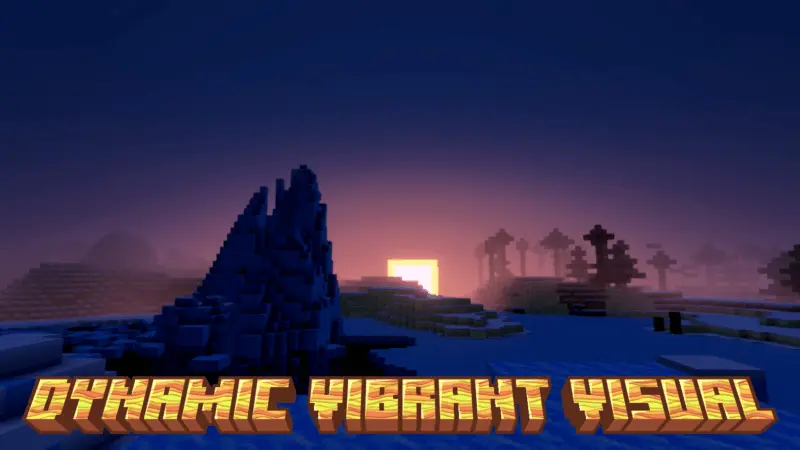
Dynamic Visual Texture Pack is a simple visual tweak pack with a clear goal: make the world warmer, more saturated, and more dynamic. The nice part is it isn’t a one-and-done filter, because you can choose the power level you want right inside the resource pack settings. So you can keep it subtle for everyday survival, or crank it higher when you want the most noticeable version.
In actual Minecraft Bedrock gameplay, that warmer color tone can change the mood fast, especially in places you spend a lot of time like your base, farms, or long travel routes. Colors can feel punchier and more present, which makes building palettes feel different than default. If you’re the type who likes making blocks “match� or you’re picky about how a room feels, the adjustable power level is the whole point: you can nudge it until the world looks good to you, instead of forcing your eyes to adapt to one extreme.
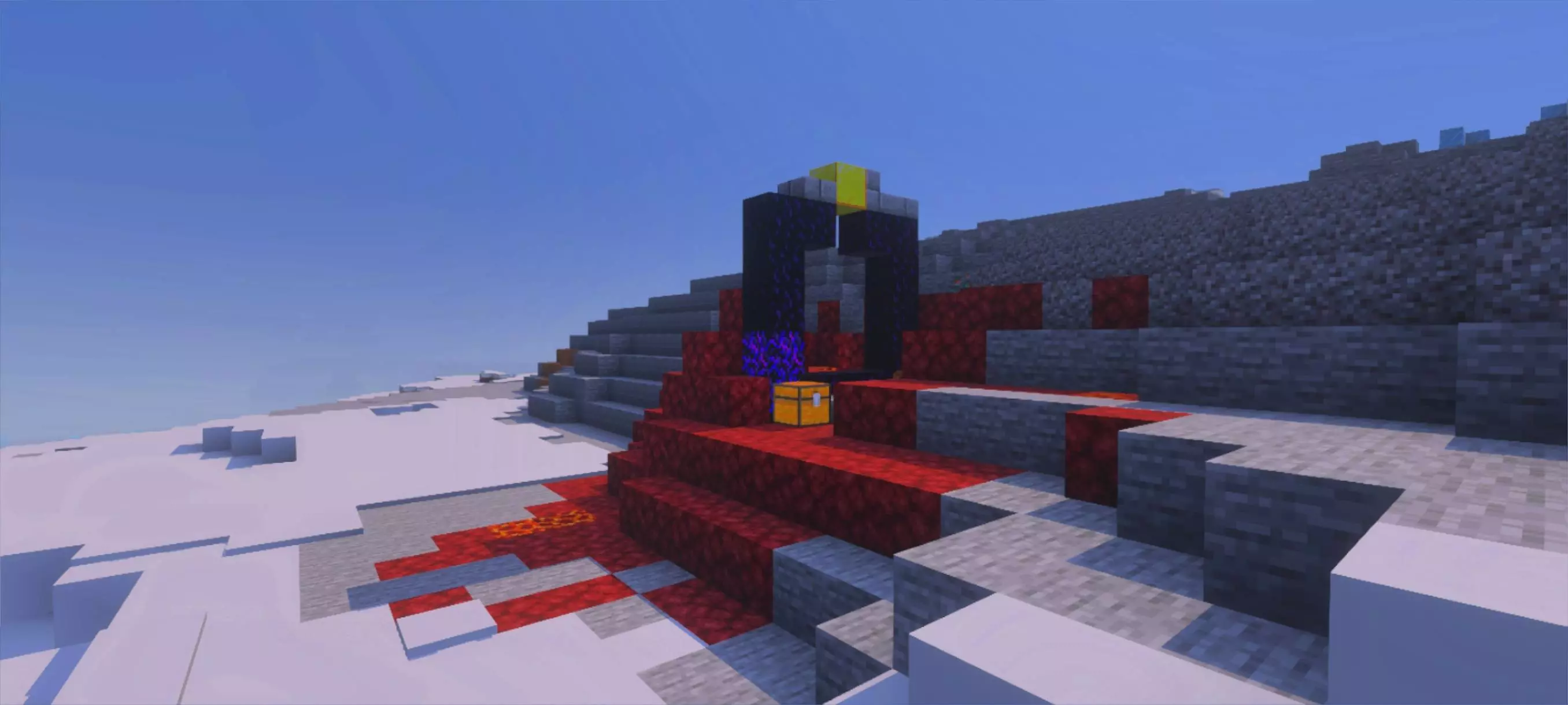
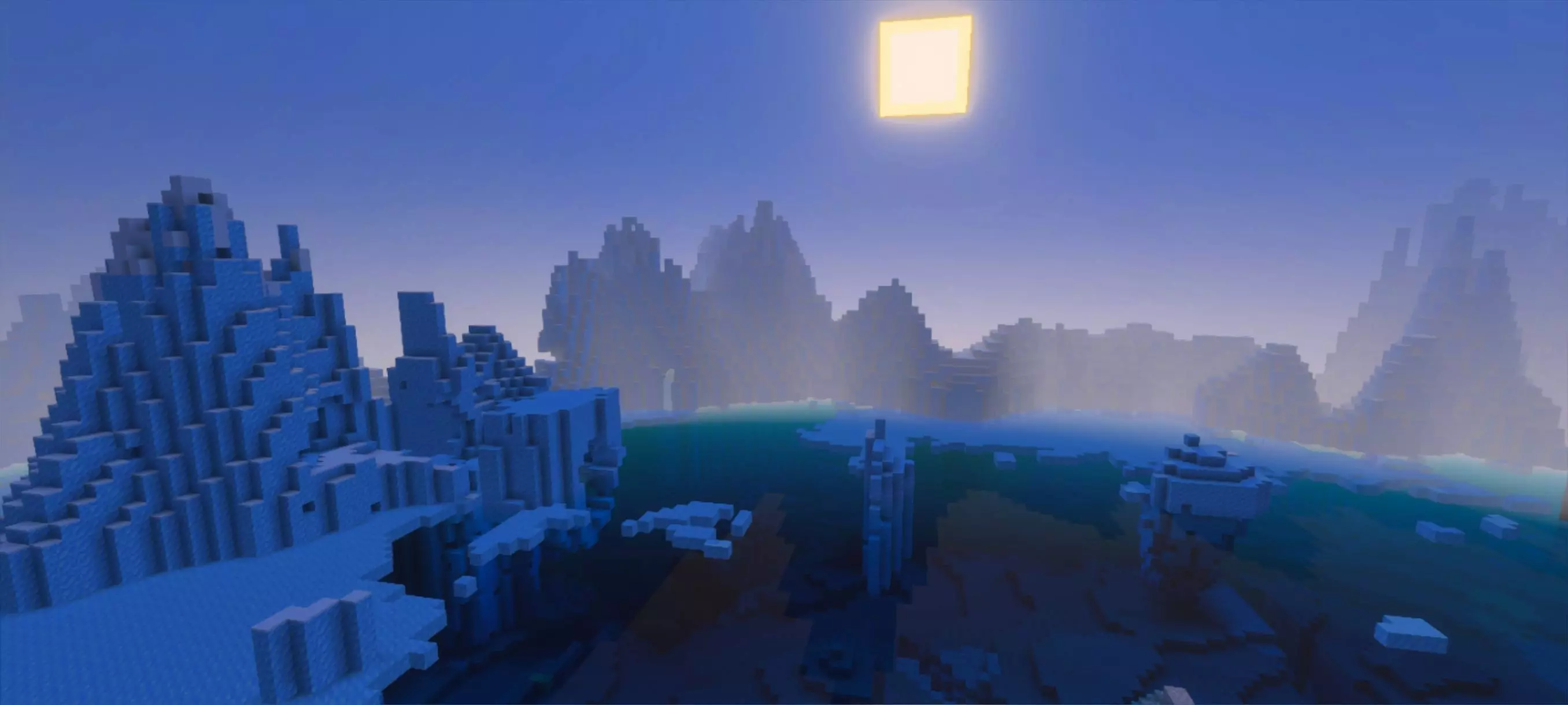
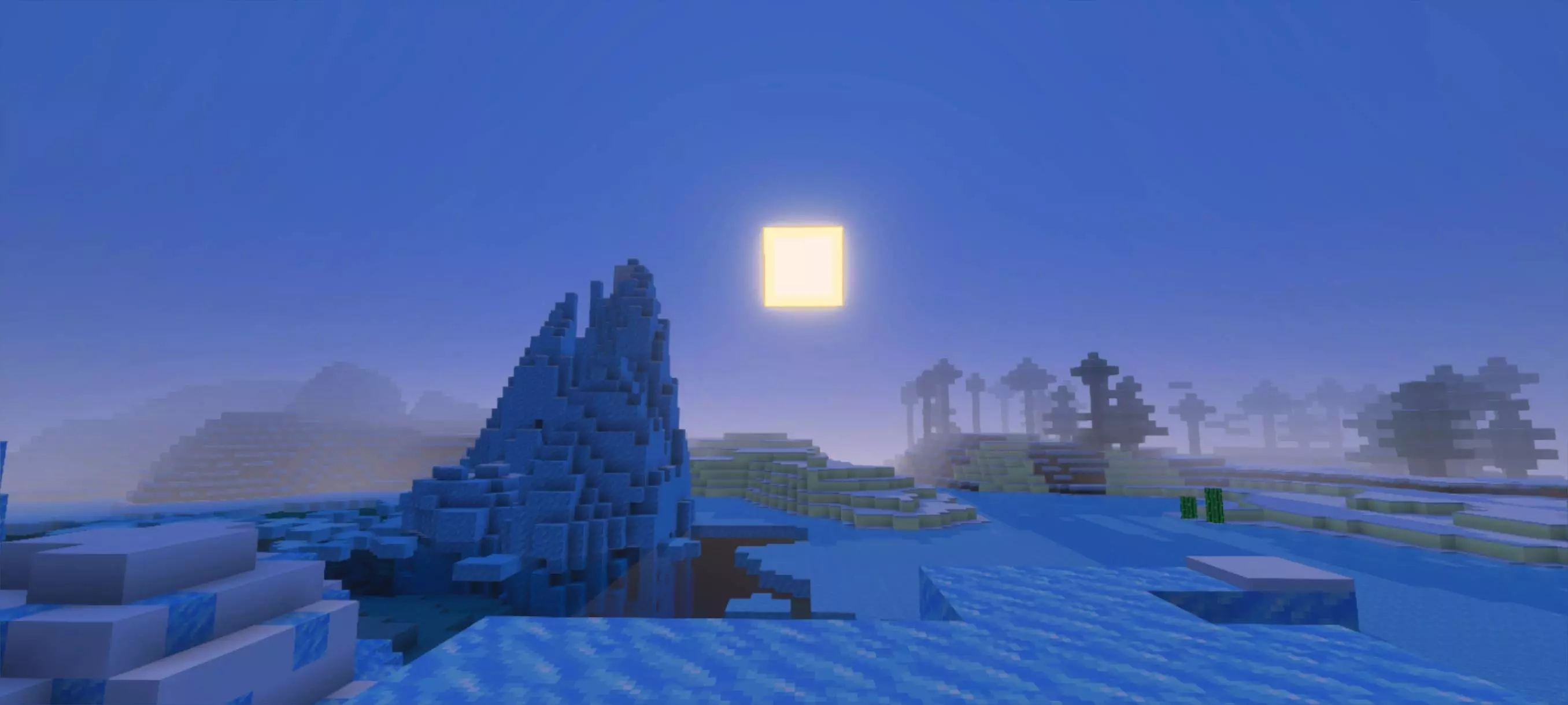
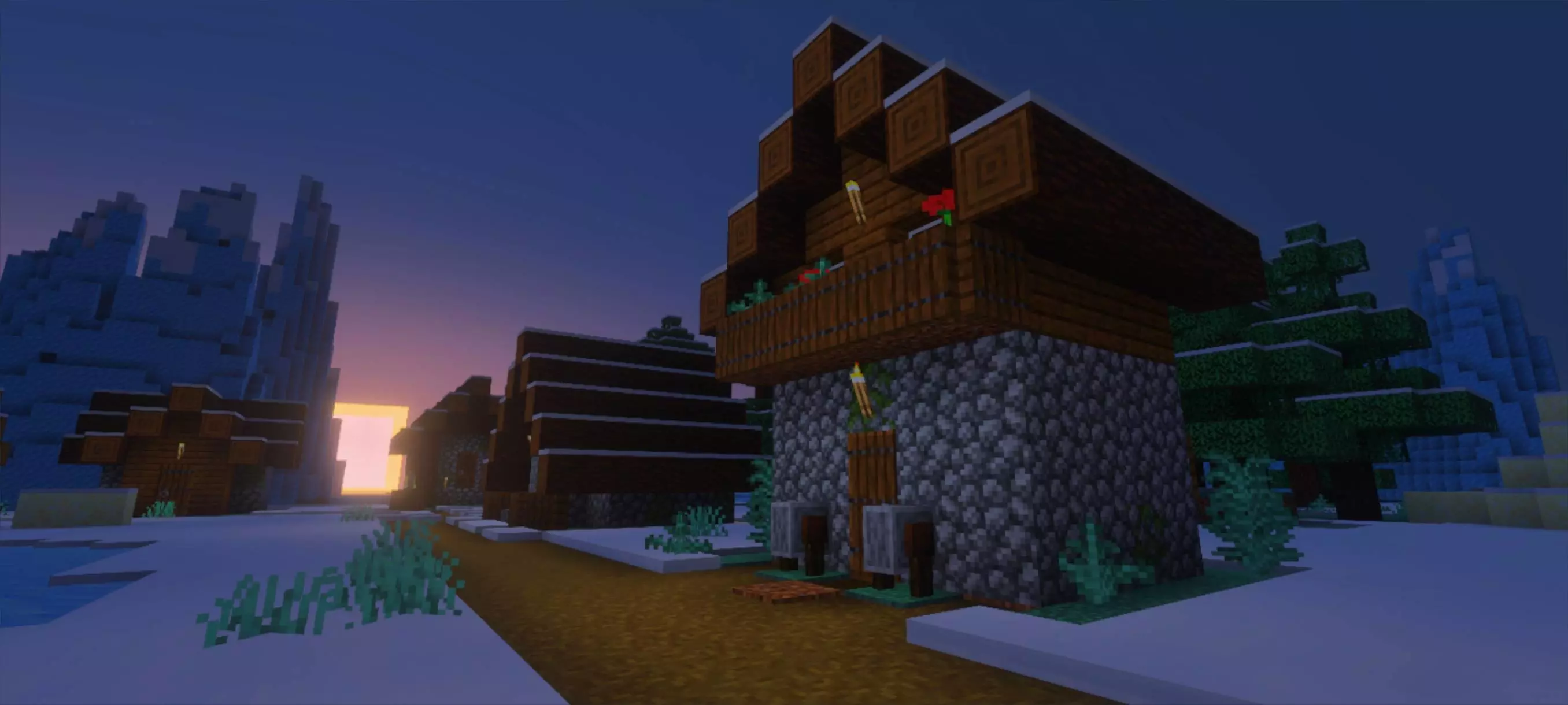
A practical tip is to set your power level based on what you’re doing that session. If you’re doing chill survival, long mining runs, or just grinding resources, a lower setting can keep the look comfortable for long play. If you’re showing off builds, taking screenshots, or you just want that extra color kick, bump it up and let the saturation do its thing. The description mentions that the dynamic effect is shown in the 100% version, so treat that top setting like the “full send� look, not the only way it’s meant to be used.
Dynamic Visual Texture Pack also plays nicely with the way most people actually customize Bedrock: you tweak the vibe until it feels right. If the colors start to feel too intense in certain areas, just drop the power level a bit and you’ll keep the warmer, more dynamic style without it taking over everything. Dynamic Visual Texture Pack is basically a slider-controlled visual mood shift for Minecraft Bedrock, giving you a warmer, more saturated world on your terms.
Installation:
- Download Texture;
- Open the downloaded .mcpack to install;
- Select texture in settings;
- Done.
Comments (0)