Luna (Vibrant Visual) – Shader
- 27-02-2026, 08:54
- 685
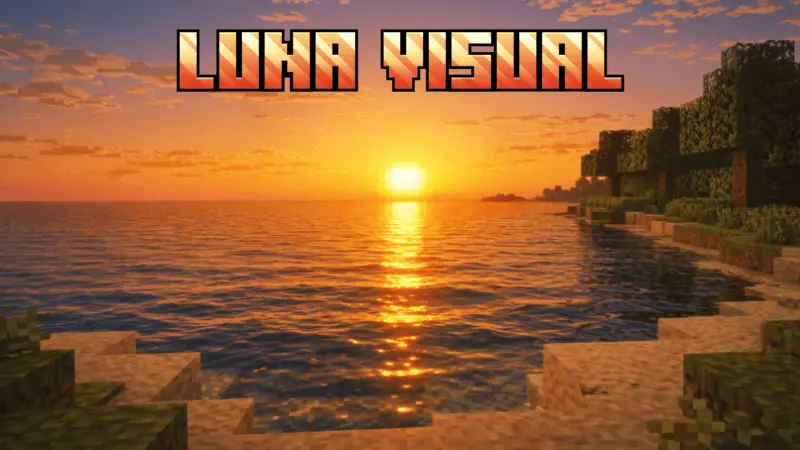
Luna (Vibrant Visual) Shader is designed to run through the Vibrant Visual rendering setup in Minecraft Bedrock, and the install rules are clear: you must enable Vibrant Visual before installing this add-on. That makes it a shader pack built for that newer visual mode, not something meant to run as a standalone effect without the proper graphics setting turned on. If you want it working the way it’s intended, the first step is simply making sure Vibrant Visual is enabled.
One of the best practical features mentioned for Luna (Vibrant Visual) Shader is that you can adjust the shade power in the settings before entering the world. That’s useful because different players want different intensity. Sometimes you want a stronger shaded look for mood, and sometimes you want something lighter that keeps the world readable during long survival sessions. Having a shade power option also makes it easier to fit into different playstyles, like casual exploration, base building, or long mining runs where too much shading can get tiring.
The setup is also meant to stay clean and low-hassle. The description says no experiments, API, or anything else is required to install this add-on, which is a big win for survival worlds where you want stability and don’t want to toggle risky settings. It’s also very clear that you should be using the latest Minecraft Bedrock update, so the shader is positioned as something that expects the newest version environment.
In real gameplay, a shader pack like Luna (Vibrant Visual) Shader works best when you treat it like a world mood choice you can tune. Test a couple shade power levels before committing to one for a long session, especially if you’re planning to explore caves, travel at night, or build in darker interiors. Since the pack is tied to Vibrant Visual and doesn’t require experimental features, Luna (Vibrant Visual) Shader sounds like a clean, accessible visual option for Minecraft Bedrock players who want adjustable shading with a simple install process.
Installation:
- Download Shader;
- Open the downloaded .mcpack to install;
- Select texture in settings;
- Done.
Comments (0)