Enderking Skin
- 19-03-2026, 08:18
- 710
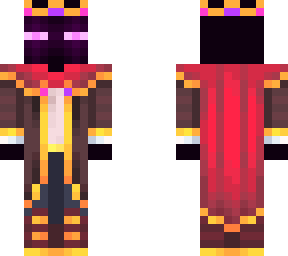
Enderking Minecraft is a new skin for the king of Endermen, look at the screenshot to see what the skin looks like. Enderking is a Minecraft skin for players who like the idea of giving their character a connection to the End. Its theme is the king of the Endermen, so it feels at home in a world of obsidian towers, distant islands, and the strange creatures that wander between them. You don’t have to wait until you reach the End to wear it, though. An Enderking can begin in a small wooden house just like any other character, collecting food and making a first set of tools. That contrast is part of the fun: one day you’re tending a farm, and the next you’re preparing to face the dragon while dressed for the occasion. If your current character needs a new look and you enjoy Minecraft’s more mysterious side, this skin gives you a simple way to bring that theme into your game.
There’s room to make the character your own. Perhaps your Enderking is an explorer who left the End and built a home in the Overworld. Maybe they’re a ruler returning to reclaim a fortress, or just someone who likes a dramatic name and a quiet place to fish. A skin can be the starting point for a story without asking you to follow any particular rules. On a multiplayer world, you could use it for a character who lives near a stronghold, runs a shop selling End-themed materials, or has a habit of collecting anything purple. If your friends enjoy roleplay, they can create their own characters and decide how they know yours. And if roleplay isn’t your thing, you can simply wear the skin while doing whatever you usually enjoy, whether that’s exploring caves, building a village, or getting lost on the way back from a woodland mansion.
The Enderking theme also works nicely with builds inspired by the End. An obsidian gateway, a tower overlooking the void, or a room decorated with end rods and purple blocks can give the character a place that feels like home. You might take a screenshot beside the portal before a group dragon fight, then return afterward for another picture with the whole team. In a creative world, the skin could suit the owner of an elaborate End castle or a guardian standing at the entrance to an adventure map. It’s just as usable for everyday survival, where your character’s appearance can add a little personality to even the most ordinary tasks. Your friends may remember the Enderking who helped them defeat the dragon—or the one who spent an entire afternoon trying to get villagers into the right house.
To use the skin, download the archive from the page and extract the PNG image inside. In Minecraft, open your profile, choose to edit your character, and find the option to import an owned skin. Select the image, choose the character model that fits it, and confirm your selection. You can then see how it looks in the character screen or switch to a third-person view once you’re in your world. If you have a favorite base or a recently finished build, that’s a good place to try it out and take a picture. Keep the downloaded image somewhere you can find it again if you like changing between different looks. Whether your Enderking has a grand kingdom waiting or is starting with an empty inventory and a wooden pickaxe, the rest of the story is yours to play.
How to Install Skins in Minecraft Bedrock
- Download a .png skin (64×64 or 128×128).
- Open Minecraft Bedrock.
- Go to Profile (hanger icon) → Edit Character.
- Tap Owned → Import → Choose New Skin.
- Select your .png file.
- Pick a model: Classic (Steve) or Slim (Alex).
- Confirm to equip and play.
Comments (0)