Zero Two Skin Pack
- 24-03-2026, 11:48
- 864
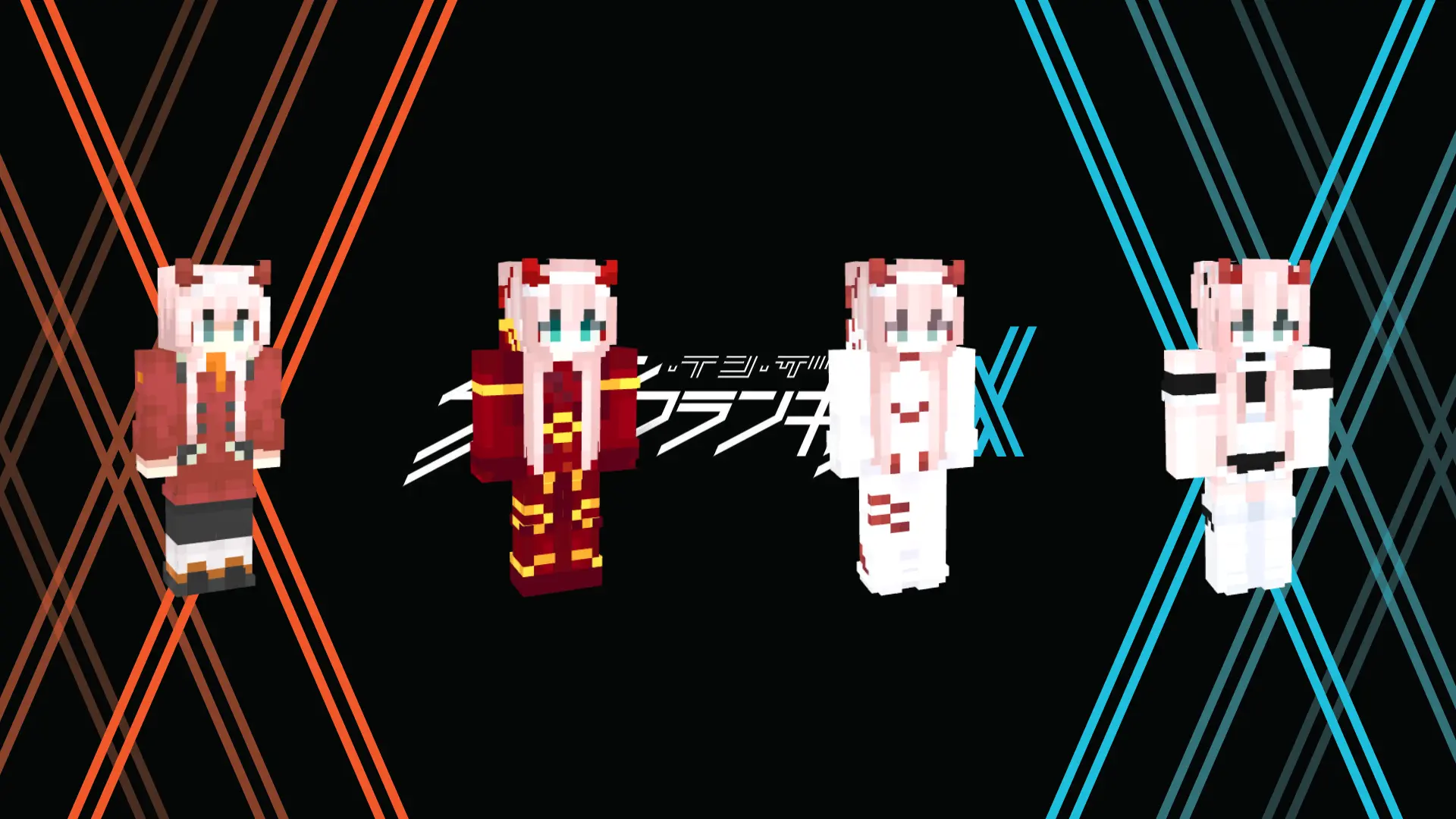
Zero Two Skin Pack will add skins from this anime to Minecraft. Zero Two’s pink hair and red horns are hard to mistake, even when they’re recreated in Minecraft’s blocky style. This skin pack brings the character from DARLING in the FranXX into your world, with a collection of looks to choose from. If she’s one of your favorite anime characters, you can take that familiar appearance with you while exploring, building, or playing with friends.
Rather than settling on a single skin, take a moment to look through the collection in the character editor. Each choice offers another interpretation of Zero Two, so you can pick the one that appeals to you most. You might prefer a look that reminds you of the series, or simply choose the design that looks best beside the buildings and scenery in your world. The Minecraft skin format gives every character its own blocky proportions, but recognizable colors and details can still carry a lot of personality. It’s enjoyable to see how an anime character translates into a world made of square blocks, especially when you switch to third-person view and catch sight of your character in a familiar place.
There are plenty of settings where the skin can feel at home. You could wear it while building a futuristic base, exploring a city made by another player, or putting together an anime-themed roleplay with friends. It works just as well for a regular survival session: Zero Two can be the character you take mining, bring along on a boat trip, or dress in armor before heading into the Nether. If your friends also enjoy the series, everyone could choose a favorite look and explore together. Screenshots are another reason to spend a little time choosing a skin. Try standing in front of a build you’re proud of or finding a landscape that suits the character’s colors, then switch to third-person view to see how the design looks in the scene.
Installing the collection starts with the downloaded skin pack file. Open it with Minecraft to import it, then visit the Dressing Room and look through your owned skins to find the pack. Select the design you want to wear, and you’re ready to return to your world. You can come back to the character editor whenever you feel like trying another look; there’s no need to choose a permanent favorite on the first visit. These are appearance options, so your tools, abilities, and survival goals stay the same. The change is in who you see on screen and how you choose to imagine your next adventure. Whether you’re a longtime fan of DARLING in the FranXX or just like Zero Two’s distinctive style, the pack gives you a way to bring a little of that anime into your Minecraft sessions.
How to Install Skins in Minecraft Bedrock
- Download a .png skin (64×64 or 128×128).
- Open Minecraft Bedrock.
- Go to Profile (hanger icon) → Edit Character.
- Tap Owned → Import → Choose New Skin.
- Select your .png file.
- Pick a model: Classic (Steve) or Slim (Alex).
- Confirm to equip and play.
Comments (0)