Gothic HD Skin Pack
- 13-08-2026, 01:15
- 329

The Gothic HD Skins pack drops a massive dose of dark, alternative energy into your game with highly detailed black-and-purple fits. If you want to bring some serious edge to your next multiplayer session, this collection is an absolute must-grab.
Let's be real, running around in a neon hoodie or a standard default character gets boring real fast. Sometimes you just want an aesthetic that matches your late-game Nether fortress or that massive underground base you've been working on. This pack completely delivers on those moody, mysterious vibes. Instead of flat, standard pixel art, you are getting high-definition textures that make the dark clothing and purple accents look insanely crisp. Whether you are sweating it out in a BedWars lobby or just hanging around a massive SMP with your friends, rocking a genuinely detailed alt look makes you stand out immediately.
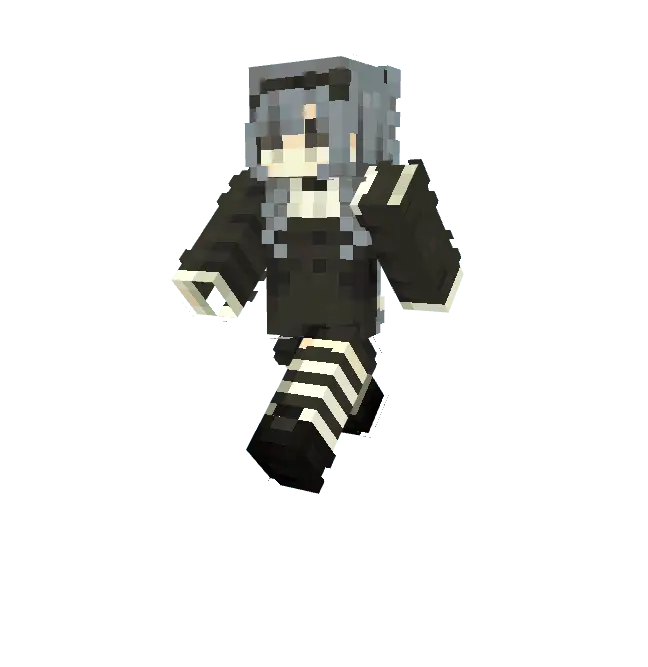
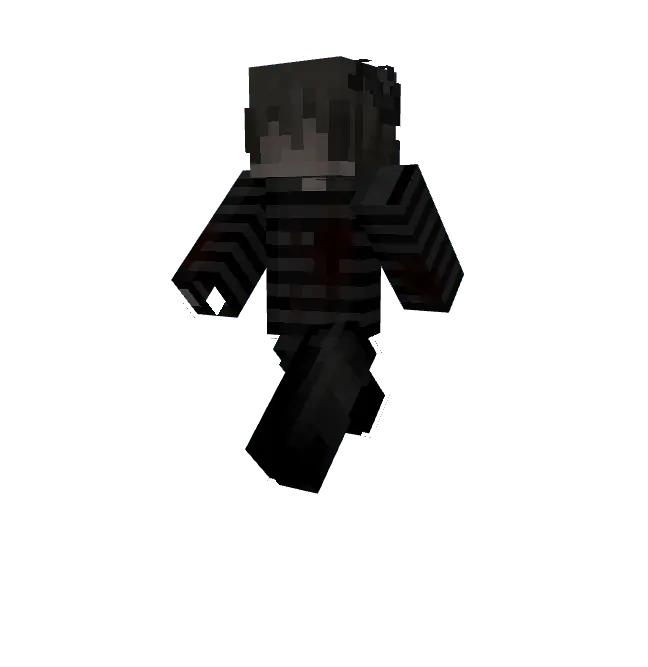
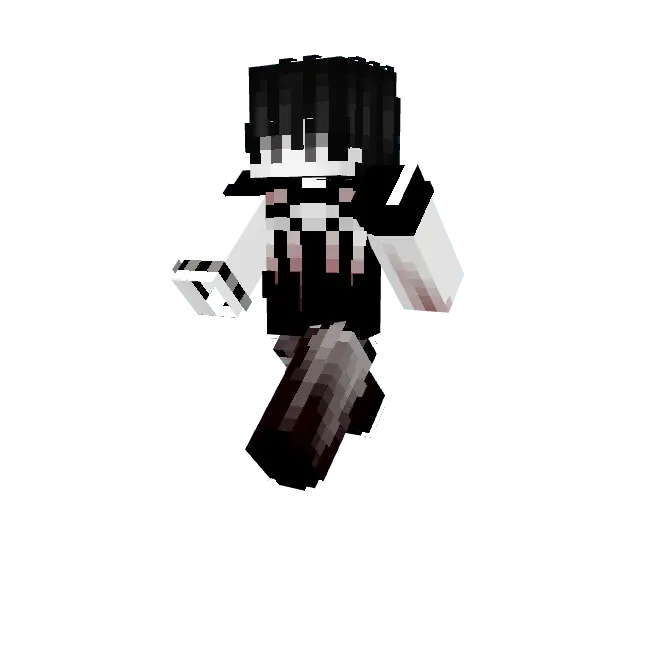
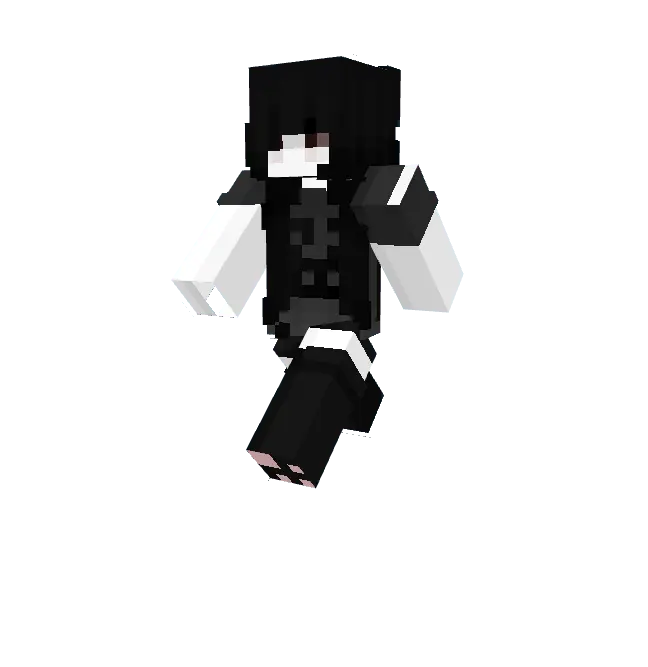
Finding a solid Minecraft Bedrock skin pack that actually nails the goth aesthetic without looking like a blurry mess is surprisingly hard. Most dark skins just mash black pixels together and call it a day, but the shading on these models actually gives the outfits depth and texture. It is a top-tier MCPE HD skin setup for anyone who loves roleplaying or just prefers a darker vibe while grinding for gear. Swap out your basic outfit, load up these custom Minecraft skins, and bring some much-needed edge to your realm today.
Quick guide: How to install this Minecraft skinpack
Downloaded the .mcpack file? Here is exactly how to get it into your game depending on what device you are using right now.
- On Windows or Android: Just click or tap the downloaded file twice. Minecraft will open up on its own and load the skins immediately.
- On iPhone or iPad: Save the file, open your Files app, and hold your finger on it. Hit Share, select Minecraft from the list, and the game will handle the rest.
To put the skins on, just open Minecraft, head over to the Dressing Room (Profile), click on Classic Skins on the left, find this pack under Owned, and tap Equip.
Comments (0)