Simple guide: How to install a Minecraft skinpack in 2026
- 6-06-2026, 03:20
- 976
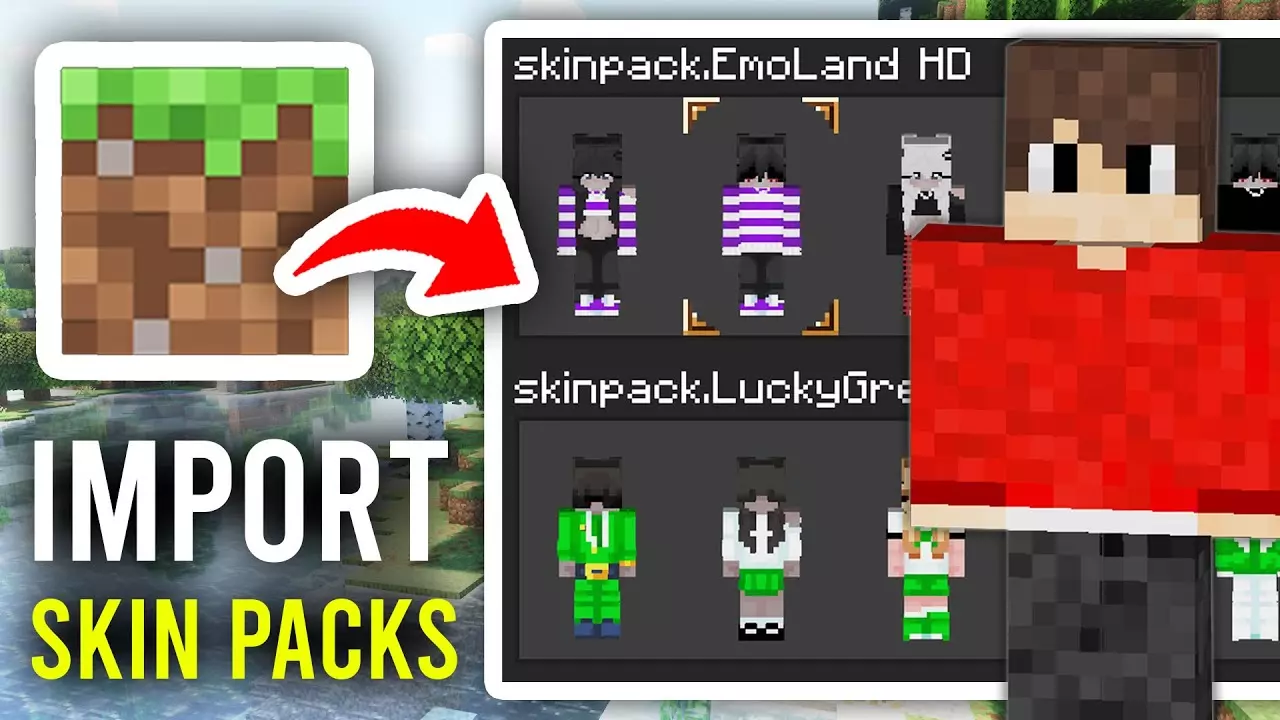
On this page I will explain in simple gaming language how to install a skin pack on your Minecraft Bedrock in 2026. Even a beginner can understand this skin pack installation guide, but some secrets will help you too. If you want to learn how to install a Skin Pack using a .mcpack file, then listen up!
First, grab your .mcpack file. If you are on a PC, just double-click the file, and if you are using an Android, simply tap it. This automatically fires up Minecraft and it does all the importing in the background, so you just need to wait a couple of seconds until you see a success message pop up at the top.
Scoring an insane skin bundle only to get stuck staring at an unrecognized file format is the ultimate vibe killer, but the Simple Guide: How to Install a Minecraft Skinpack in 2026 cuts through all that modern OS nonsense so you can get back to flexing on the server in seconds.
With every major system update hitting phones, consoles, and PCs over the last few years, basic file handling in Minecraft Bedrock has turned into a minefield of hidden folder paths, permission pop-ups, and confusing archive extractions. Back in the day, you just dropped an image into a folder and called it a day. Now, between locked sandboxes on mobile operating systems and Bedrock constantly revamping its Dressing Room interface, half the community ends up abandoning top-tier skin packs because they think the download is broken. The reality is that getting fresh fits loaded up is still ridiculously straightforward once you know which buttons to hit.
For iOS, things are a tiny bit different since Apple is strict about files. Once the file is downloaded, head over to your Files app to locate it. Hold your finger down on the file until a menu pops up, select the Share option, and then just pick Minecraft from the app list. The game will launch straight away and pull the skins right in.
When you're ready to actually use the skin, go to the main screen in Minecraft and click either Dressing Room or Profile. On the left side, look for a little hanger icon or three characters, which takes you to Classic Skins. Click that, open up the Owned section where your pack is sitting, select the skin you want, and just hit Equip.
And you can download the best Minecraft skins on my website here - https://mc-addons.com/skins/
Comments (0)