The Guardian of Eden Skin
- 19-03-2026, 04:19
- 614
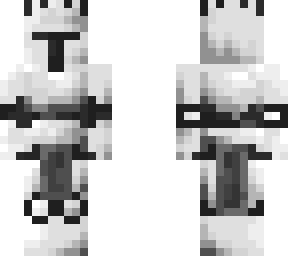
The Guardian of Eden Skin is a white knight that you will become in Minecraft. The Guardian of Eden turns your Minecraft character into a white knight. The look is light, unusual, and easy to recognize among the darker armor and clothing that often appear in fantasy skins. If you’ve been looking for a character to match a castle, an old temple, or a garden hidden away in the mountains, this one is a good place to start.
The name immediately gives you something to work with. Who is the guardian? What happened to Eden? Is it a beautiful place that still needs protecting, or somewhere abandoned long ago? The skin doesn’t answer those questions for you. You can wear it simply because you like the design, or come up with a story as you play.
I can picture this character standing at the gate of a walled garden, surrounded by pale stone and tall trees. Not a huge fortress, necessarily. Even a small courtyard with a fountain, a few flower beds, and a path leading into the woods would give the guardian somewhere to belong. If you already have a favorite spot in your world, you could build the garden there and let the rest of it take shape over time.
The skin also works for a knight who has left home. Start a survival world, gather what you need, and set out to find a place for your base. A village near a forest might become the settlement you decide to protect. A ruined building could be the reason you stay in one area and start rebuilding. None of this requires special rules; it’s just a way to give an ordinary Minecraft journey a bit of character.
Playing with friends gives you more possibilities. One of you could build the castle while another takes care of its gardens and paths. Someone might arrive as a visitor, a fellow knight, or a traveler looking for shelter. You don’t need a complicated roleplay server to enjoy the idea. A few friends, a shared world, and a place to build are enough to make an evening of it.
The pale outfit will look especially good against darker surroundings. Try standing outside a stone gate at sunset, or take a screenshot near the entrance to a deep cave. It’s also worth checking the skin in third-person view while you’re walking around. You’ll get a better sense of how the character looks from different angles than you would from the preview alone.
Remember that the knight’s outfit is part of the skin. It won’t reduce damage when a skeleton shoots at you, and it won’t replace the armor you craft during survival. Equipping armor will cover some of the design, so you may want to remove it when you’re safely at home and want to see the full skin again.
To install The Guardian of Eden, extract the downloaded archive and find the PNG file. Open your Minecraft profile, choose to edit your character, and import the image from the owned skins section. Check the character preview, choose the model that fits, and confirm. Once you enter the world, all that’s left is to decide where your guardian belongs.
How to Install Skins in Minecraft Bedrock
- Download a .png skin (64×64 or 128×128).
- Open Minecraft Bedrock.
- Go to Profile (hanger icon) → Edit Character.
- Tap Owned → Import → Choose New Skin.
- Select your .png file.
- Pick a model: Classic (Steve) or Slim (Alex).
- Confirm to equip and play.
Comments (0)