Knight of the Eternal Crusade Skin
- 19-03-2026, 03:44
- 505
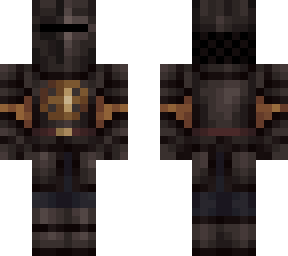
Knight of the Eternal Crusade - beautiful and detailed skin of a knight in armor for Minecraft. Knight of the Eternal Crusade is a Minecraft skin for players who want the appearance of a knight in armor. The dark design suits a character who looks ready for a long journey, whether that journey leads through a forest, into a ruined castle, or straight down into a mine. It’s a good fit for a medieval world, though you can use it anywhere you want your character to have a more serious look.
The armor is part of the skin itself, with details that give the outfit the appearance of a complete knight’s set. It looks at home beside stone walls and fortress gates, especially if you’ve been building a castle and want a character to match. You could make a small guardhouse at the entrance, add a road leading toward a village, and turn the surrounding area into a place your knight calls home. A large castle isn’t necessary, though. A modest tower on a hill can be just as good a starting point.
If you enjoy playing with friends, the skin gives you an easy role to take on in a shared world. Your knight might guard the settlement while others build, accompany the group on an expedition, or simply be the one who insists on investigating the cave everyone else wants to avoid. You can make up a story for the character or skip the roleplay entirely and wear the skin during your usual survival sessions. Either way, the design fits naturally alongside swords, shields, horses, and the other things you might associate with a medieval adventure.
The armor shown on the skin is cosmetic, so it won’t protect you from damage by itself. You’ll still need to craft and equip armor before facing mobs. Actual armor can cover parts of the design while you wear it, but you can take it off at your base to see the full skin again. For a closer look, switch to third-person view and turn the character around; the preview is useful, but seeing the skin in your own world makes it easier to decide how well it fits.
To install it, extract the downloaded archive and find the PNG image. Open your Minecraft profile, choose to edit your character, and import the image from the owned skins section. Select the model that displays it correctly and confirm. After that, your knight is ready to enter the world—whether you’re heading out on an expedition or staying home to finish the castle.
How to Install Skins in Minecraft Bedrock
- Download a .png skin (64×64 or 128×128).
- Open Minecraft Bedrock.
- Go to Profile (hanger icon) → Edit Character.
- Tap Owned → Import → Choose New Skin.
- Select your .png file.
- Pick a model: Classic (Steve) or Slim (Alex).
- Confirm to equip and play.
Comments (0)