Technoblade Skin Pack
- 13-10-2026, 01:30
- 699
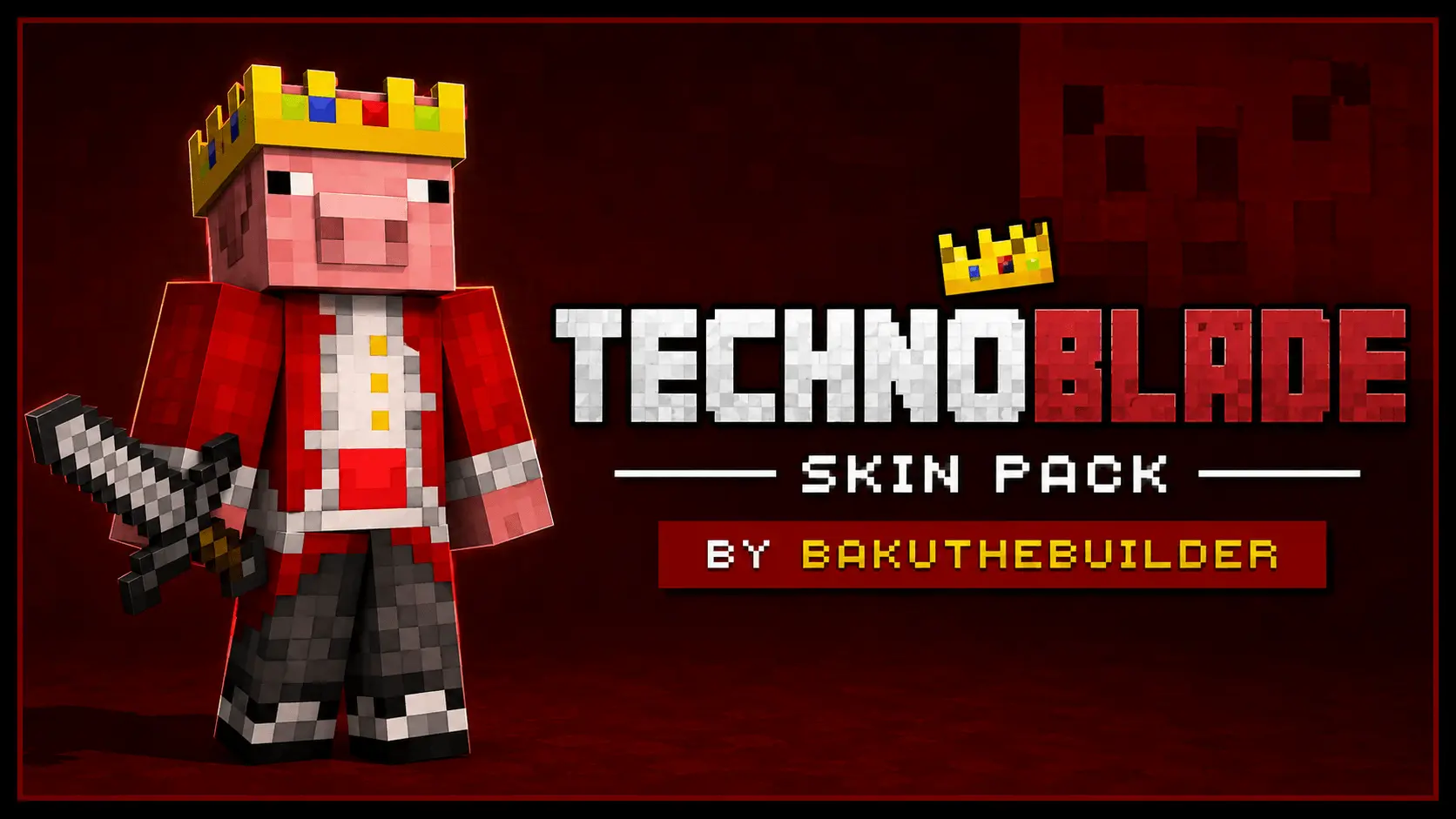
The Technoblade Skin Pack lets you pay tribute to one of Minecraft’s greatest PvP legends by rocking his iconic royal pig outfit in your own world. It is the perfect way to keep the "Technoblade never dies" energy alive during your next Bedrock faction war or survival run.
Honestly, anyone who spent time watching classic tournament streams knows how much of an absolute beast Techno was. This custom Bedrock skin pack captures that exact vibe perfectly, giving you the classic pig king design complete with the golden crown and the royal red outfit. The developer didn't try to overcomplicate things with weird, buggy 3D attachments either—it’s just a clean, high-quality 64x64 texture that looks incredibly sharp whether you are actively bridging in Bedrock SkyWars or just farming crops at your main base.
There is a heavy psychological weight to equipping this specific MCPE character model. You aren't just tossing on another random marketplace outfit; you are repping the greatest to ever touch a diamond sword. The pack delivers a pixel-perfect recreation of his legendary pig anarchist avatar, complete with the gold crown, layered royal mantle, and that signature deadpan stare. The designers ensured the color palette stayed entirely true to the original, perfectly translating the saturated reds and stark golds so they pop aggressively against the muted tones of Bedrock combat arenas. It is instantly recognizable from eighty blocks away, demanding absolute respect before the match countdown even finishes.
If you are queuing up for high-stakes Bedwars or brutal KitPvP duels, you actually have to back up the drip. This Technoblade Minecraft Bedrock skin pack is engineered without any broken 4D geometry or oversized custom hitboxes that would obscure your peripheral vision during a heavy melee combo. The standard 64x resolution maps flawlessly to both the classic and slim arm chassis. When you are aggressively speed-bridging across the void, W-keying a stacked opponent, or pulling off a clutch pearl throw, the textures track tightly to your movement. You get zero awkward clipping around the shoulders or legs, keeping your crosshair locked and your client performance optimized during chaotic team fights.
Because it is fully optimized for the current Bedrock engine, you can import it into your game with a single click. You don't have to jump through any weird file extraction hoops or deal with annoying external apps. You just load it up, select the outfit from your dressing room, and jump straight into a multiplayer server. It works flawlessly in public lobbies, custom roleplay maps, or split-screen co-op sessions with your friends.
If you want to intimidate everyone in the pre-game lobby before a match even starts, grab this MCPE legend skin pack and show everyone who the real king of the arena is.
Quick guide: How to install this Minecraft skinpack
Downloaded the .mcpack file? Here is exactly how to get it into your game depending on what device you are using right now.
- On Windows or Android: Just click or tap the downloaded file twice. Minecraft will open up on its own and load the skins immediately.
- On iPhone or iPad: Save the file, open your Files app, and hold your finger on it. Hit Share, select Minecraft from the list, and the game will handle the rest.
To put the skins on, just open Minecraft, head over to the Dressing Room (Profile), click on Classic Skins on the left, find this pack under Owned, and tap Equip.
Comments (0)