Ultimate PVP Skin Pack
- 21-07-2026, 05:31
- 373
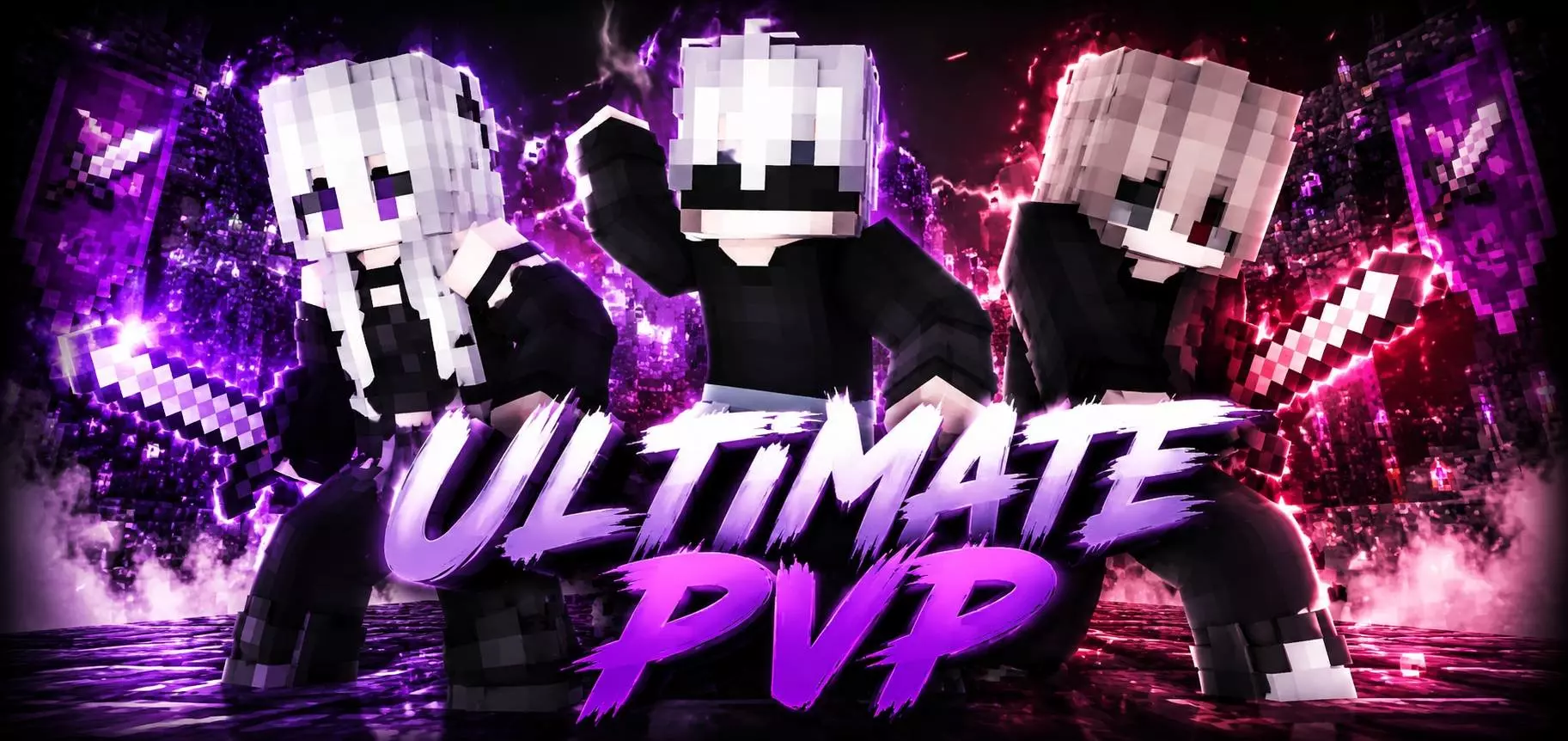
The Ultimate PVP Skin Packs are basically a massive flex for anyone grinding competitive matches. If you are hopping into SkyWars, Bedwars, or hunting people down in heavy faction servers, you know how annoying it is to roll up in a default Steve skin or a marketplace outfit that half the lobby is wearing. You need a look that actually says you are about to speed-bridge over and ruin a win streak.
Joining the Ultimate PVP Squad lets you do exactly that and start your next action-packed adventure without looking like a total noob. The developer built these outfits specifically for the sweatier side of the community. You get an aggressive lineup of edgy, combat-ready designs packed with neon highlights, dark hoodies, and masked aesthetics. The color blocking on these models is incredibly clean, meaning your character won't look like a blurry pixelated mess when you are wildly clicking during an intense 1v1 encounter.
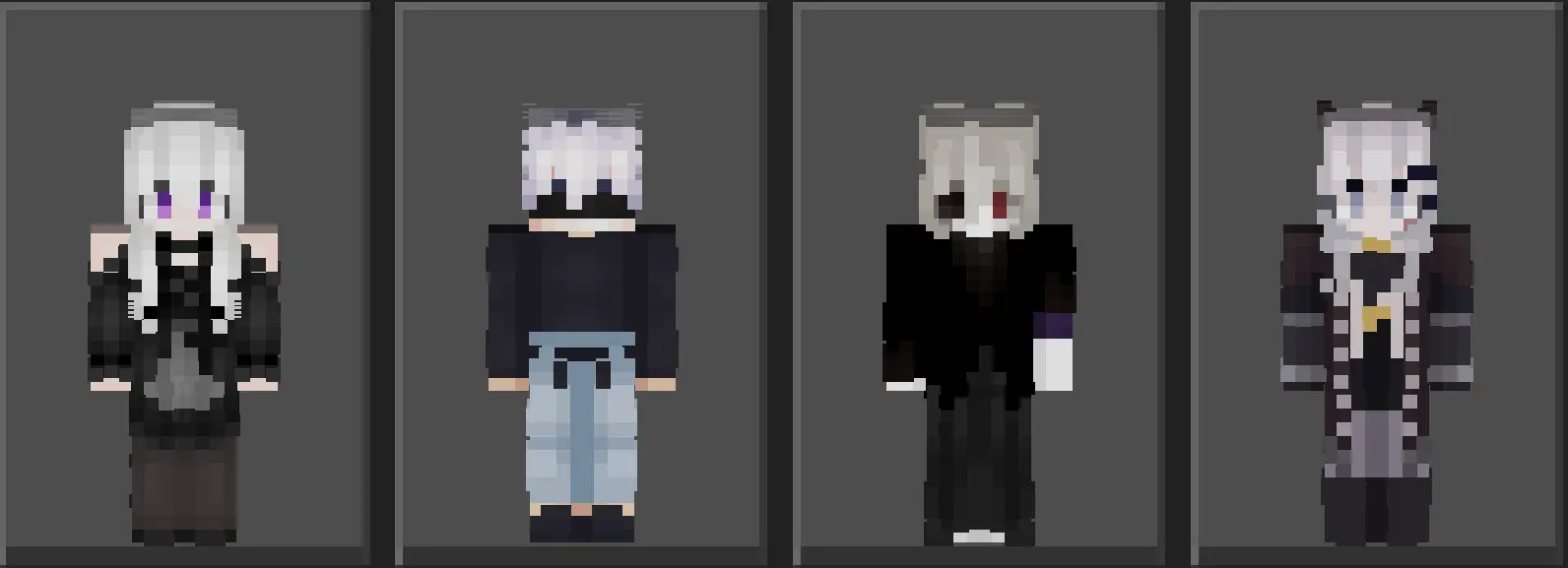
When you are grinding out competitive mini-games or running high-stakes Factions, your outfit is basically your reputation. Standard marketplace cosmetics usually suffer from terrible shading or bulky geometry that just feels clunky during a fast-paced melee exchange. This Ultimate PVP Skin Pack Minecraft Bedrock drop strips away all that unnecessary noise. The entire collection focuses on clean, tactical streetwear, featuring dark, shadowy bases pierced by bold neon accents. You get that classic tryhard aesthetic—hoodies, masks, and sleek athletic wear—that instantly signals to the lobby that you actually know how to W-key and combo properly.
From a mechanical standpoint, these skins are engineered for pure performance. The pixel artists kept the textures razor-sharp without adding bulky 3D layers that obscure your vision or glitch through your armor pieces. Whether you run the classic blocky chassis or strictly use the slim arm model for that aerodynamic feel, the geometry holds up flawlessly. When you are aggressively speed-bridging across the void or snapping a quick bow shot, you won't catch any cursed texture tearing around your joints. Your character’s profile remains incredibly tight, meaning you won't suffer from those weird visual distractions that ruin your focus in the middle of a clutch 1v1.
A ton of Minecraft Bedrock PvP skins try to throw in fake 3D accessories that just clip through your armor and look awful. This collection skips that junk, keeping the art super readable so you actually look intimidating. Because everything is optimized, you literally just download it and the skins drop right into your dressing room. If you want to make your opponent panic before the fight even starts, grab this MCPE competitive skin pack and load into your next game.
Quick guide: How to install this Minecraft skinpack
Downloaded the .mcpack file? Here is exactly how to get it into your game depending on what device you are using right now.
- On Windows or Android: Just click or tap the downloaded file twice. Minecraft will open up on its own and load the skins immediately.
- On iPhone or iPad: Save the file, open your Files app, and hold your finger on it. Hit Share, select Minecraft from the list, and the game will handle the rest.
To put the skins on, just open Minecraft, head over to the Dressing Room (Profile), click on Classic Skins on the left, find this pack under Owned, and tap Equip.
Comments (0)