Zoro Skin — Minecraft
- 13-08-2026, 01:11
- 280
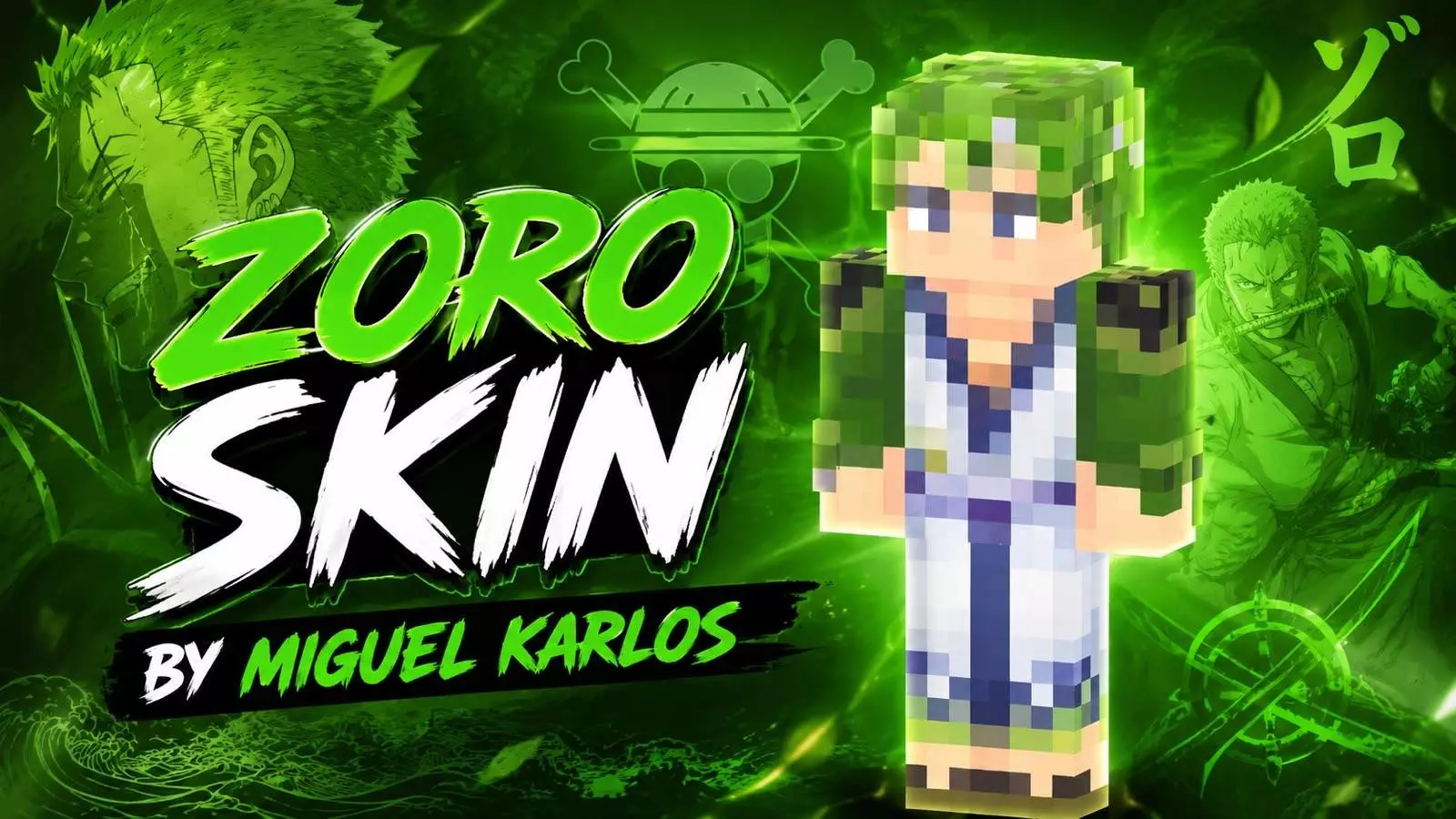
Channel everyone's favorite lost swordsman with the Zoro Skin, bringing heavy anime vibes straight to your blocky survival worlds. If you want to ditch the basic Steve look for something with actual main-character energy, this green-themed outfit is an instant download.
If you watch anime, you already know exactly who this is. Rocking up to a multiplayer server with this iconic green hair and battle-ready outfit instantly lets everyone know you're not just another random player. Whether you are dual-wielding netherite swords in a sweaty PvP arena or just getting completely lost inside a massive cave system, the aesthetic fits perfectly. A lot of pop-culture outfits tend to look incredibly awkward when translated into blocks, but the pixel art on this one is super sharp.
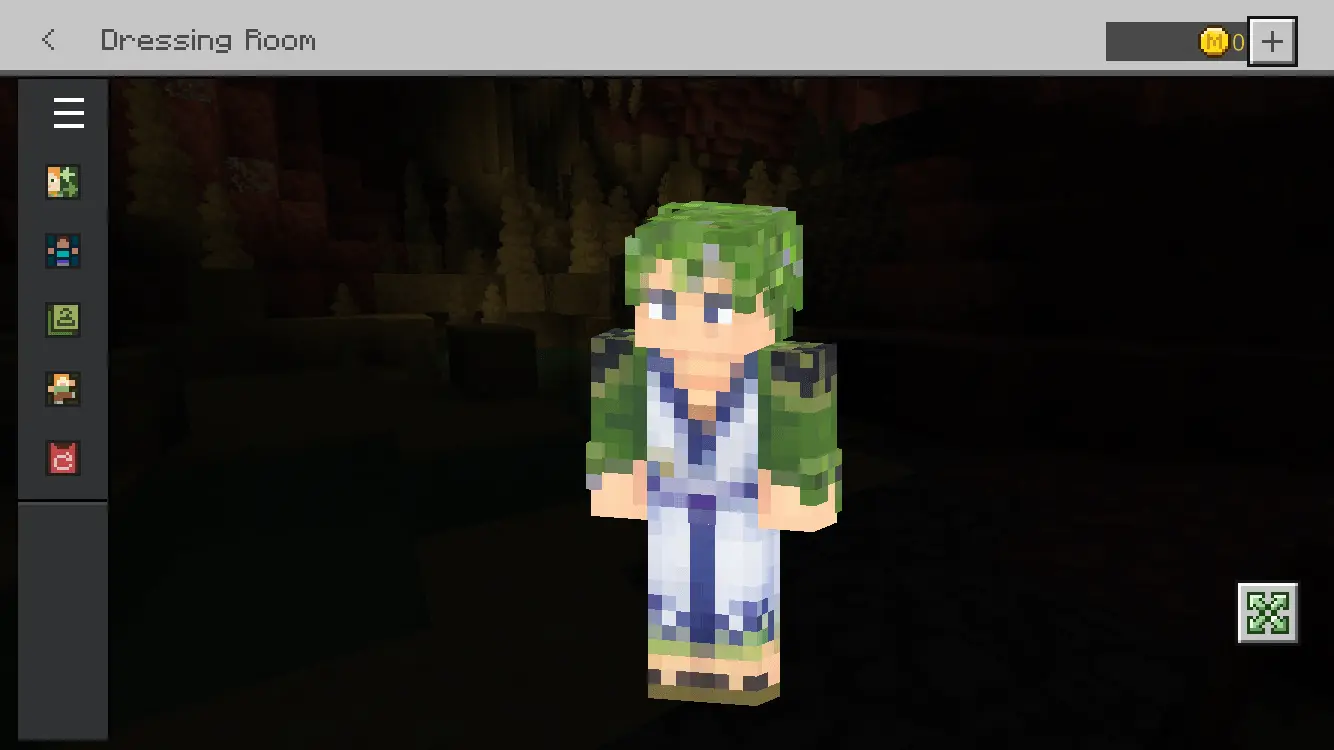
You don't have to deal with blurry textures or muddy colors ruining your look. The shading on the coat and that signature hair color pop beautifully, especially if you run shaders. It is honestly tough to find a solid Minecraft anime skin that actually looks good in-game, but this one completely nails the legendary swordsman vibe. If you want to rep one of the best shows out there while grinding for gear, this MCPE custom skin is an absolute must-have. Stop wandering around your realm looking like a default bot. Grab this top-tier Minecraft Bedrock skin today and start slicing through those late-game mob farms in style.
Quick guide: How to install this Minecraft skinpack
Downloaded the .mcpack file? Here is exactly how to get it into your game depending on what device you are using right now.
- On Windows or Android: Just click or tap the downloaded file twice. Minecraft will open up on its own and load the skins immediately.
- On iPhone or iPad: Save the file, open your Files app, and hold your finger on it. Hit Share, select Minecraft from the list, and the game will handle the rest.
To put the skins on, just open Minecraft, head over to the Dressing Room (Profile), click on Classic Skins on the left, find this pack under Owned, and tap Equip.
Comments (0)