Cute Girl Skin
- 23-11-2025, 14:34
- 1 109
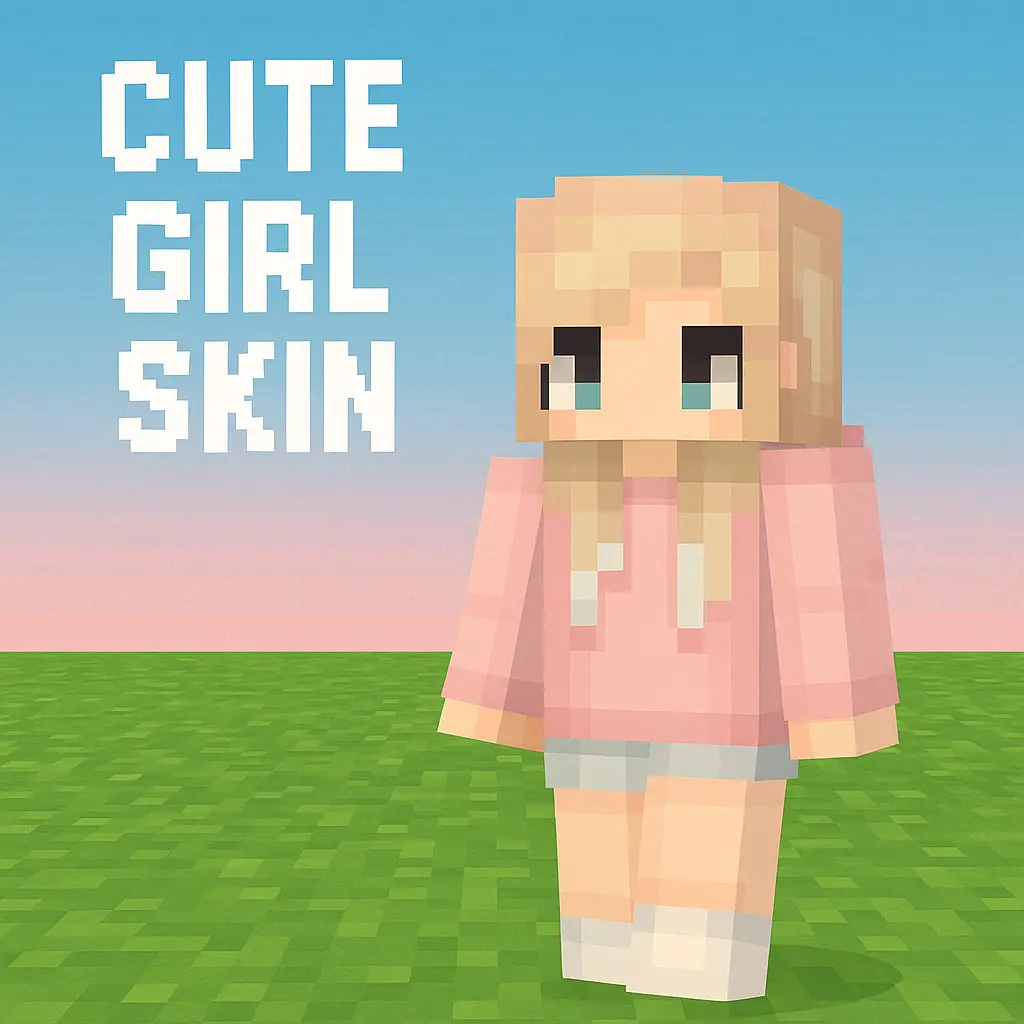
Cute Girl Skin leans straight into that soft, aesthetic vibe a lot of players love but don’t always find in default options. Instead of loud colors or edgy designs, you get a clean, pretty look that fits right into calm survival worlds, creative builds, or relaxed SMPs where you’re just hanging out, farming, and decorating your base. It feels like the kind of skin you’d pick when you’re in the mood to explore with some music on, not sweat PvP all day.
In regular survival, this skin works great if you’re the “builder friend� in the group. Picture yourself tending crops, decorating a cozy starter house, or laying down paths through a cute little village — the skin matches that whole mood. On Realms and servers, it’s instantly recognizable: your character walks into a room and people know, “yeah, that’s the aesthetic one with the nice base.� It looks good in screenshots, too, especially if you’re into sharing your builds or posting progress pics of your world.

Because it’s just a visual change, nothing about combat or movement is affected. Hitboxes stay normal, so you can still run dungeons, fight bosses, and jump into minigames without any weird advantages or drawbacks. Cute Girl Skin is basically a small style upgrade for players who care how their character looks on screen. If you like calm, pretty visuals and want your in-game self to match the aesthetic of your builds and shaders, this skin fits right in.
How to Install Skins in Minecraft Bedrock
- Download a .png skin (64×64 or 128×128).
- Open Minecraft Bedrock.
- Go to Profile (hanger icon) → Edit Character.
- Tap Owned → Import → Choose New Skin.
- Select your .png file.
- Pick a model: Classic (Steve) or Slim (Alex).
- Confirm to equip and play.
Comments (0)