Herobrine Zombie Skin
- 23-01-2026, 06:53
- 836
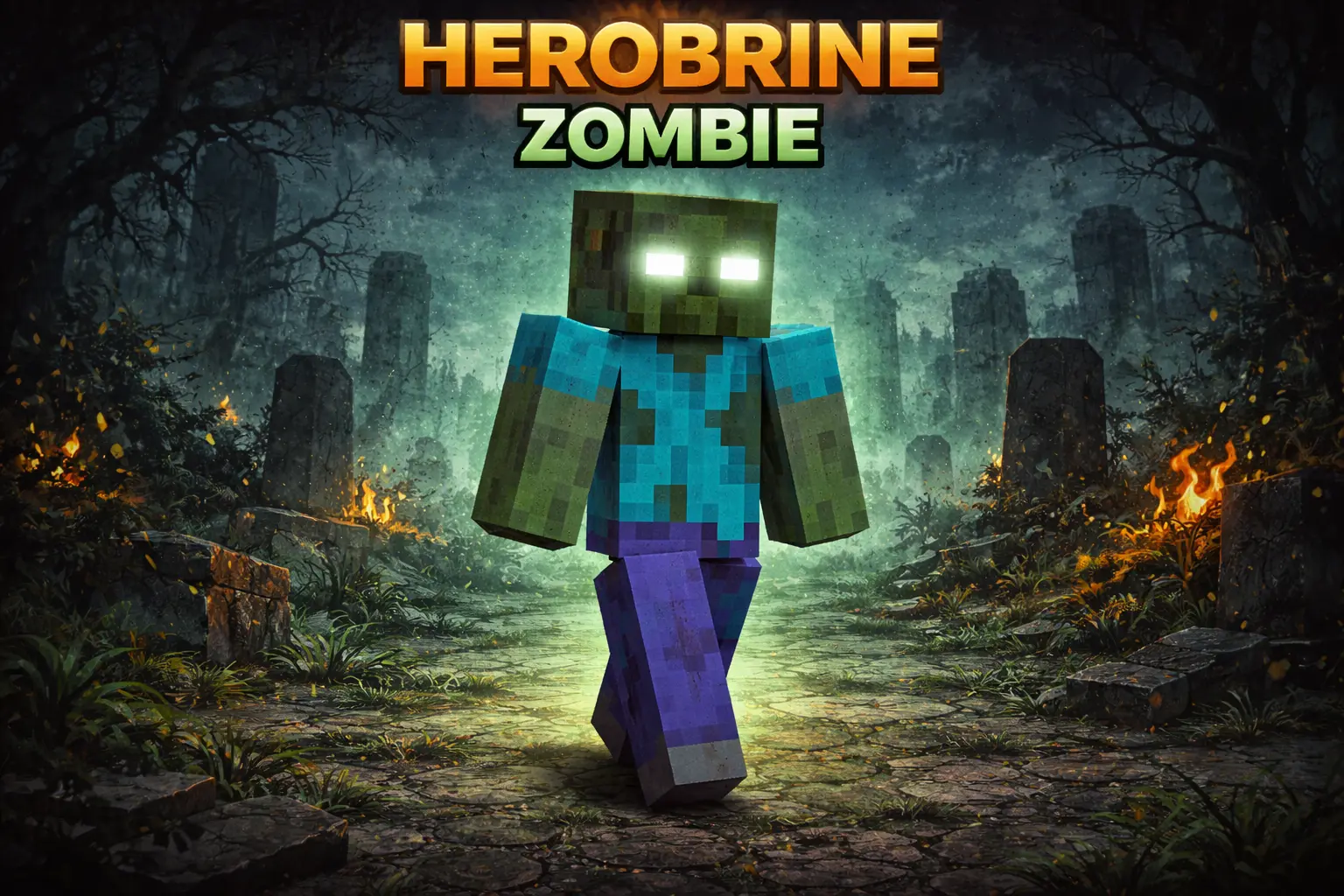
Herobrine Zombie Skin is for players who want to look like a straight-up rumor that crawled out of a cave and never left. It blends the “everyone knows that name� Herobrine energy with the undead feel of a zombie, so your character instantly reads as creepy without needing flashy details or a complicated outfit.

A zombie at the edge of your torchlight is bad enough. When it looks like Herobrine too, your friends might take a second look before remembering they invited you to the server.
Herobrine Zombie combines Minecraft’s best-known ghost story with the look of an undead mob, creating a character that feels right at home in a dark cave or an abandoned village. It’s a good pick if you like horror skins that draw on familiar Minecraft ideas rather than an entirely new monster. The Herobrine connection gives the character that old campfire-story appeal: the figure someone claims they saw between the trees, just far enough away to make everyone wonder who was really there. The zombie side adds a different edge to the look, making it feel like the legend has had a rough time since its last sighting. You can bring that atmosphere into a survival world without changing the world itself. Wear the skin while exploring a mineshaft, building an underground hideout, or simply waiting outside a friend’s house after sunset. A well-timed appearance through the window might be all the entertainment your group needs.
For players who enjoy roleplay, there are plenty of ways to give Herobrine Zombie a part in a shared story. Build an overgrown house on the edge of town and leave clues that someone has been living there. Set up a mine entrance beyond the village and have your friends investigate it during a game night. Or make your character a mysterious survivor who turns up whenever the group thinks the area is safe. You can keep the whole scenario lighthearted or aim for a slower, creepier mood; the skin works as the visual starting point, while your group decides what happens. If you’re making a video or taking screenshots, try a scene in a dimly lit corridor or beneath the trees at night. A familiar torchlit Minecraft setting can be more effective than an enormous haunted castle, especially when the character in the background is easy to miss at first glance.
Herobrine Zombie is a cosmetic skin, so equipping it won’t spawn Herobrine, alter zombie behavior, or give your character special powers. You’ll still have the same inventory, health, and survival challenges as everyone else. To put it on, download the ZIP archive and extract the PNG image. Open Minecraft’s Dressing Room, edit your character, and choose the option to import an owned skin. Select the image from your device, preview the character models, and pick the one whose arms display correctly. Once you load into a world, check the look in third person and decide whether you want to wear armor over it. A helmet can hide some of the face, so take it off for a screenshot if you want the full character visible. Then head back to your favorite survival world or invite your friends to a spooky build. You might discover that standing perfectly still in the wrong place is scarier than chasing anyone.
On multiplayer servers, this skin is amazing for silent trolling. You can stand at the edge of someone’s torchlight, show up behind a friend while they’re mining, or just walk through a village at night and let the vibe do the work. People will clock the Herobrine part fast, and the zombie twist makes it feel even more cursed.
In survival, Herobrine Zombie Skin fits best when you’re living in caves, grinding dungeons, or building darker stuff like abandoned houses and underground bases. It also works great for roleplay worlds where you want to be the “infected legend� character who never talks but always shows up at the worst time. If you want a scary look that’s simple, recognizable, and fun to run long-term, Herobrine Zombie Skin is an easy pick.
How to Install Skins in Minecraft Bedrock
- Download a .png skin (64×64 or 128×128).
- Open Minecraft Bedrock.
- Go to Profile (hanger icon) → Edit Character.
- Tap Owned → Import → Choose New Skin.
- Select your .png file.
- Pick a model: Classic (Steve) or Slim (Alex).
- Confirm to equip and play.
Comments (0)